Showing posts with label Google Doc. Show all posts

Aug 21, 2021

Citing source in Google Doc

 Did you know you can EASILY cite sources without ever leaving Google Docs? Yep! It’s so easy!

Insert Footnote Citation in Google Docs

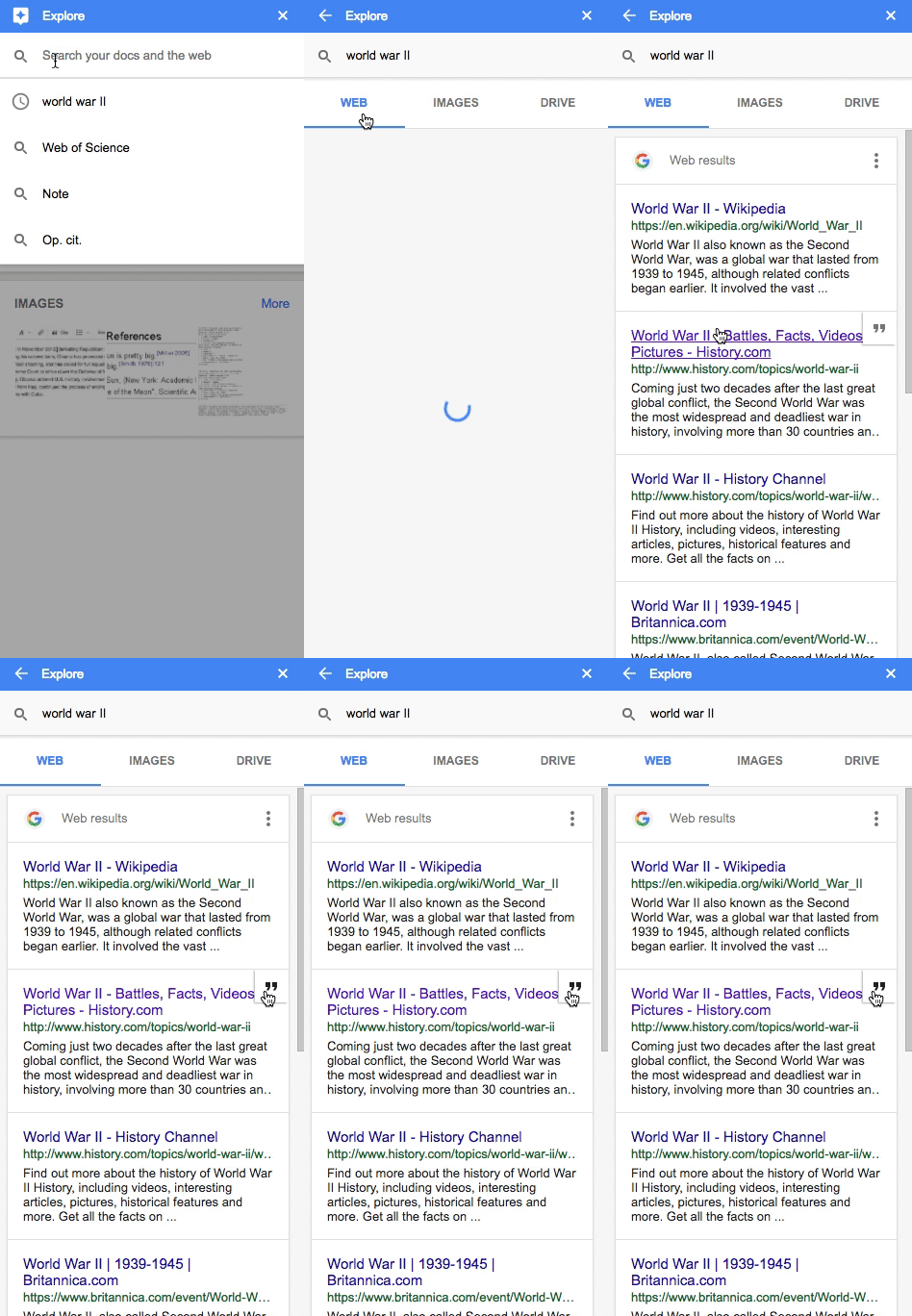
You can easily add footnote citations by using the Explore tool in Google Docs. 

How to Cite Sources in Google Docs

1. Go to Tools>Explore (or click on the explore icon 0n the bottom-right)

2. Type in your search query to find the source

3. Hover over the result, then click on the quotations " in the top right of the result

4. A footnote citation will be added to the bottom of your doc

How to Cite Sources in Google Docs

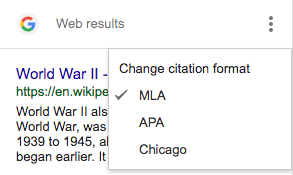
Change the Citation Format:

You can cite the source in MLA, APA or Chicago!!!!!

Go to the three dots (snowman) to change from MLA, APA, or Chicago.

How to Cite Sources in Google Docs

 Source: https://shakeuplearning.com/blog/10-google-docs-tips-every-teacher-should-know/

Aug 6, 2020

Mr Vacca's Tech toolkit


Thanks to Mr. Bill Vacca for his kind permission to share this. 

Updated doc with links 2021


Google for Edu. Tech Toolkit 2021 


Mar 28, 2019

Image to Text using Google Doc

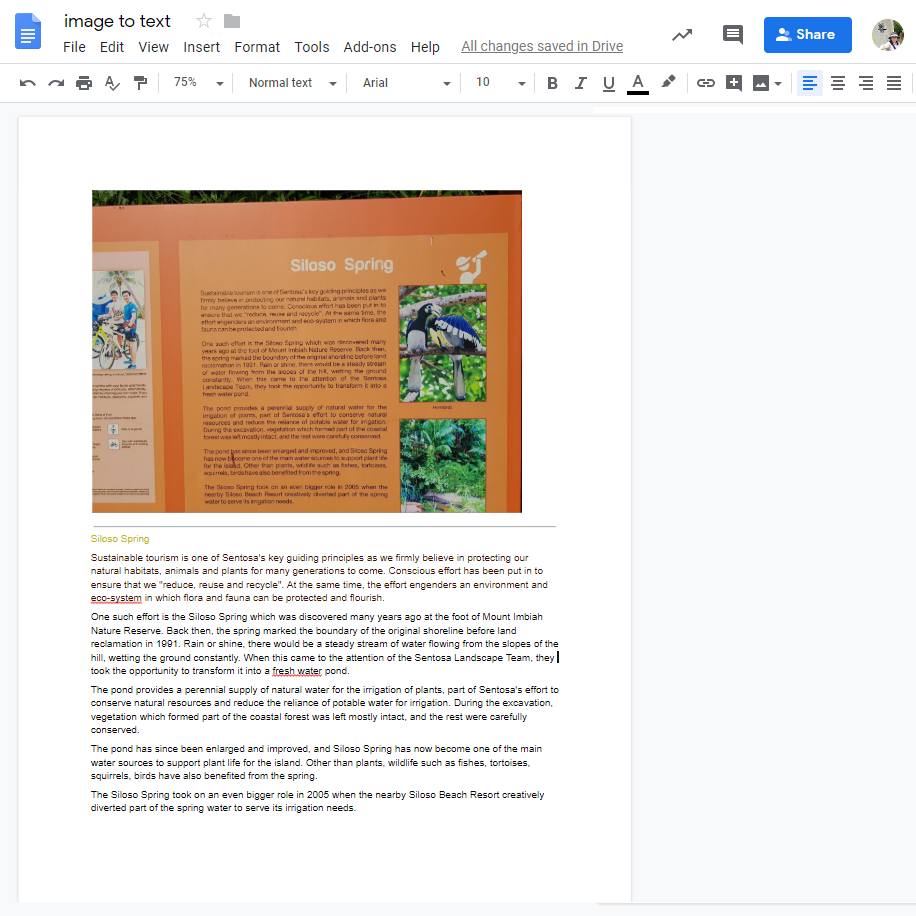
Shared in the sg learning designer circle how Google translate worked in Google sheet and also learned from Zhirong that you can convert images to text in Google Doc! Definitely very useful as can be seen below - the picture of the information board which I took in Sentosa is converted to text immediately!
You just have to upload the picture to Google drive and then in Google drive open the picture with Google Docs. The original image plus the converted text is shown! Its so very useful!


The original picture and the converted text from Google Docs
Siloso Spring
Sustainable tourism is one of Sentosa's key guiding principles as we firmly believe in protecting our natural habitats, animals and plants for many generations to come. Conscious effort has been put in to ensure that we "reduce, reuse and recycle". At the same time, the effort engenders an environment and eco-system in which flora and fauna can be protected and flourish.
One such effort is the Siloso Spring which was discovered many years ago at the foot of Mount Imbiah Nature Reserve. Back then, the spring marked the boundary of the original shoreline before land reclamation in 1991. Rain or shine, there would be a steady stream of water flowing from the slopes of the hill, wetting the ground constantly. When this came to the attention of the Sentosa Landscape Team, they took the opportunity to transform it into a fresh water pond.
The pond provides a perennial supply of natural water for the irrigation of plants, part of Sentosa's effort to conserve natural resources and reduce the reliance of potable water for irrigation. During the excavation, vegetation which formed part of the coastal forest was left mostly intact, and the rest were carefully conserved.
The pond has since been enlarged and improved, and Siloso Spring has now become one of the main water sources to support plant life for the island. Other than plants, wildlife such as fishes, tortoises, squirrels, birds have also benefited from the spring.
The Siloso Spring took on an even bigger role in 2005 when the nearby Siloso Beach Resort creatively diverted part of the spring water to serve its irrigation needs.

Sep 5, 2015

Using Google doc and Google drive

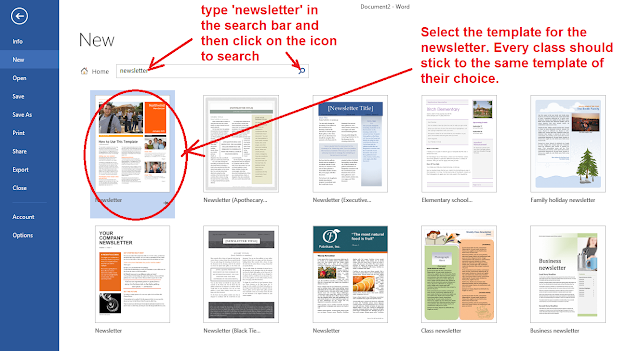
An easy way to create class newsletter will be to use the templates for newsletter in Microsoft Words. Further collaboration by the students on the newsletter can be carried out via Google Docs as shown below.

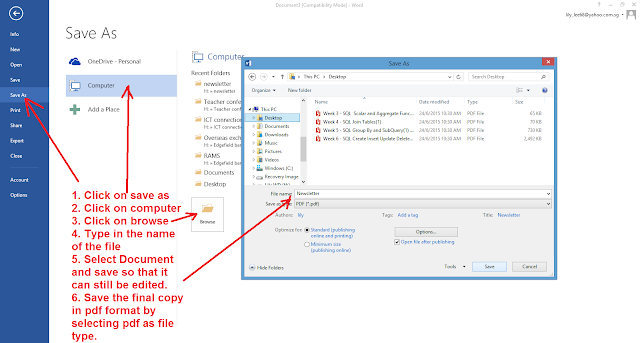
Create a new word document and choose a newsletter template.


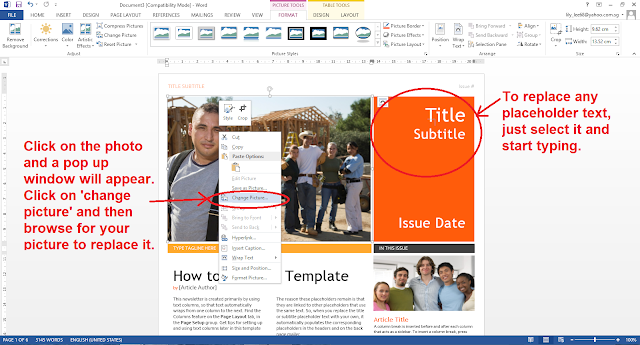
Students can then replace the text and photos on the template as shown below. They can add more pages or delete them as necessary. 


They can save the document in word document for editing as well as pdf for the final version.


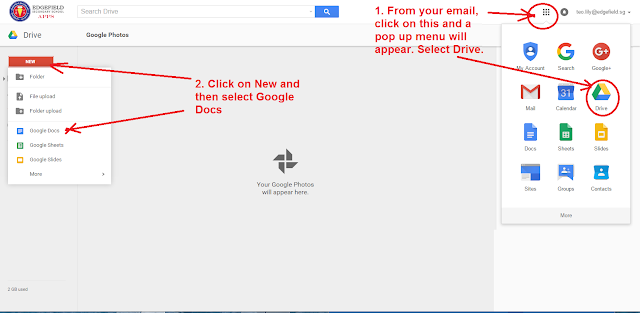
By using Google Docs, the students can collaborate and contribute the part assigned to them as well as read the part completed by their classmate. They can do this by accessing Google drive through their email account. They can then create the Google docs in the Google drive.


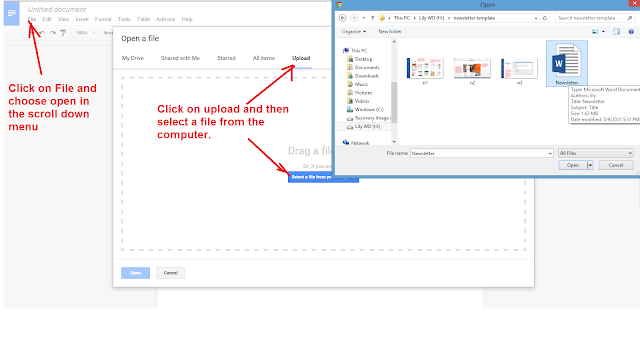
The leader of the team can open up the file which they have created using the Microsoft Word templates.

The leader can then assign rights to his/her team members to edit the document.


Sharing can also be done in the Google drive.


Mar 31, 2011

ICT mentor program Day 2

Activity 1: Fairy Tale with Voice Thread We created a fairy tale using powerpoint and used the rubistar to generate the rubrics - easy to use and I love it! http://rubistar.4teachers.org/ The powerpoint is then uploaded onto voice thread and shared. We copied the html code by clicking on embed. The html code is then pasted onto the google site for sharing and the rubrics are attached as attachment.

All the groups commented on other groups' works by clicking on comment. The commentary can be recorded and parts of the slides can also be highlighted. A virtual gallery walk is created. The circle of knowledge and virtual gallery walk strategies are used in this activity. Some other suggestions on the use of voicethreads: e.g. Humanities - a source is posted and the students comment on it. LJ presentation by groups - can be used together with blogs. Science - planning of experiments. Another useful link - http://classtools.net/ for random name picker. Very colourful graphic and "IR" aligned.Another useful tool in activity 2 - Diigo.com and diigo toolbar - articles can be shared in a group and essential points in an article can be highlighted and sticky notes with comments from the group members can be added. Activity 2: Energy Scenario:

  • Our town is growing quickly and needs more energy.

  • Which type of Energy plant should we build: fossil fuels or nuclear?

  • We'll be discussing our preference of Energy Plant in the upcoming Virtual Townhall Meeting.
Research:

  • In pairs, source for articles/ resources related to fossil and nuclear energy that would substantiate your choice of energy.

  • One member of the pair will bookmark resources using Diigo.

  • Annotate why it supports the justification of your choice of energy.

  • Share your bookmark with another pair who are in the same role. Respond to the annotations.
Advantages of using Diigo - ability to annotate and the pages will be stored on the net. Bookmark to Diigo - if not shared it would go to my library. Wthin diigo - you can add friends after sharing with groups. Role of students:

  • Research and look for information

  • Open minded attitude – learning to look at different perspective

  • Check the source to ensure reliability

  • Cyber wellness – respect intellectual copyright – paraphrase and acknowledge sources

  • Analyse the resources

  • Highlight pertinent points

  • Appropriate comments

  • To think through information to make public
Role of teacher:

  • Moderator, facilitator

  • Ensure websites are appropriate

  • Give websites to students (control environment)

  • Model useful and constructive comments

  • Questioning techniques (Devil’s advocate)

  • Appropriate search skills

  • Teach information literacy and cyber wellness
Revisited coveritlive.com for the live discussion on the topic of energy. After that we tried podcast - educator's statement belief. Vocaroo is down so we used sound recorder. Activity 3: Podcast using vocaroo/sound recorder
How to type in presentation mode?

In Office XP - click on control toolbox - view toolbars and click on control toolbox submenu - then select textbox
In Office 2007 - click on the window logo - powerpoint options popular -check show developer tab

Mar 30, 2011

ICT mentor program Day 1

Learnt about Linoit sticky notes from the day 1 program and decided to try it out. I have set the first one without the ability for public to post and the second one open to post. Sign up for the account free @ http://linoit.com/home The other tool which we use extensively today is Google document to create feedback/consolidate ideas. The consolidated ideas can be further highlighted/clarified by the facilitator. I had explained how it was used in 2009 http://ezitnew.blogspot.com/2009/11/google-documents.html

In fact I have extended the use together with glogster for a VE lesson in 2010. I have used the form to collect responses for the lesson - it was effective as the form allowed the info to be consolidated instantly and it saved paper. Students are more engaged with this new e-form compared to a paper worksheet. http://ezitnew.blogspot.com/2010/08/national-ict-sharing.html

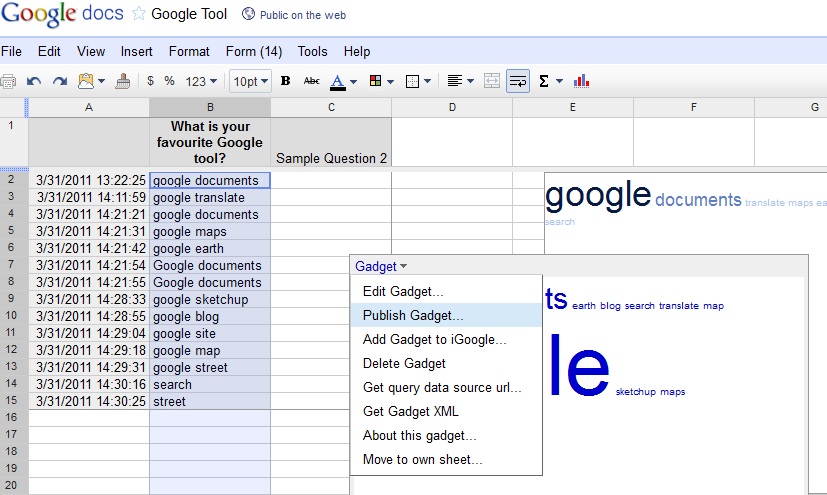
Other tools introduced were Google word cloud and http://www.coveritlive.com/.%20I was very impressed with the use of word cloud - I think it would be a fantastic tool for brainstorming. A question was asked and the participants entered a word/phrase into a box. All the responses are collated and entries which have been submitted more will actually appear bigger. This was done using google form. After creating the form with 1 question (text box). Open the spreadsheet and insert the gadget - word cloud or advanced word cloud. As shown below, once the gadget is inserted, it will appear on the spreadsheet. Just click on the top left hand corner and click on publish Gadget. Copy the html code to your site or blog. I could not paste it here as it conflict with my blog account.

The coveritlive.com tool was used together with the fish bowl strategy. A group form the inner circle and discuss on a topic. The group in the outer circle will observe the discussion and record their observations on coveritlive.One thing good about this tool is that if you click on the bubble at the button of it - you will be able to translate it to another language. A poll (quiz) was also integrated. He mentioned that the postings can be archived and the group could go back to it to check the responses.

You can view our live discussion here: http://www.coveritlive.com/index2.php/option=com_altcaster/task=viewaltcast/altcast_code=d7bc0e35df/height=800/width=800

Another good link for educator - educational videos from edutopia: http://www.edutopia.org/east-technology-lab-video

We watched the one on East - A way forward.

Nov 26, 2009

Google Doc translator

Another feature on Google doc which Mr Wong shared with us today - translating a page from one language to another. Click on create new document. Type or paste the article which you would like to translate and then click on "tools" followed by "translate document" and choose the language you want to translate it into. This is the translated document of an article from the news- not 100% grammatically correct but the meaning is there.


Nov 13, 2009

Google Documents

I generated a survey form for 3n2 using google document- http://sss3n2.blogspot.com/2009/11/class-gathering.html I could view the responses on a spreadsheet and the data is also processed into a summary chart for me. The spreadsheet is definitely useful in helping me to collate the information which I need.