Thanks to the sharing by Feline and Estella from Assumption English School on the following SLS lesson on Sec 2 Historical Investigation field trip to the Former Ford Factory.
The Historical Investigation Field Trip Package can be found on the SLS Community Gallery here:
✅ Describe and explain the experiences of civilians during the Japanese Occupation
✅ Empathise with those who lived through this difficult time
✅ Gather, analyse, and summarise evidence to evaluate the impact of the occupation
How SLS Supported Deeper Learning: Key Features
🧠 Interactive Thinking Tool (ITT)
Students used ITT to respond to open-ended prompts such as "How do you think civilians felt during the Japanese Occupation?" and "What values can we learn from their experiences?"
They could view peers’ responses, reflect critically, and revise their answers based on new insights — promoting collaborative and metacognitive thinking.
📊 Poll Tool with Emojis
Used to spark empathy and discussion, the poll allowed students to vote on hypothetical decisions (e.g., “Would you have resisted or complied with Japanese rule?”) and see real-time class responses.
Emojis made responses more accessible, especially for weaker or younger students, and encouraged emotional connection.
✍️ Short Answer Feedback Assistant (SAFA)
Students received instant AI-powered feedback on short-answer questions, helping them revise ideas and clarify misunderstandings.
Example prompt: “Describe the hardship faced by civilians based on what you observed today.”
🔡 Fill-in-the-Blank and MCQ
These closed-ended tools were embedded throughout the trail to reinforce content knowledge and test historical understanding.
The auto-marking function reduced cognitive load and freed students to focus on higher-order reflection.
🧭 Pictorial Instructions for Navigation
To ensure students could work independently at each station, we embedded visual guides within SLS. Arrows and image cues provided clarity on where to go and what to do next — a key feature in supporting independent learning and self-direction.
I shared on the use of Google Classroom with Arman for the SGLDC Virtual meet. The link to the slides and video recording of our sharing in SGLDCvirtual meet on Google classroom.
You can try out Brain Boost Time for in-class breaks which can be used in the middle of a long lesson when transitioning between activities or even at the start of a lesson in the periods after recess. For those of you with HBL still, you can use BBT @ go.gov.sg/etdbbt in your 'live' lessons too by sharing your screen.
If you do use BBT, do email him with some of your thoughts at suhaimi_zainal_shah@moe.gov.sg or enter your feedback here https://sites.google.com/moe.edu.sg/brainboost/others/feedback
Definitely benefitting from the sharing in SGLDC and by my colleagues as I used it for my morning meet with my form class, making it more effective.
1. Attendance and temperature taking using Google Form and spreadsheet
Shared by Yong Qin in SGLDC, he had created a Google Form and Google Spreadsheet which simplified the process of taking the attendance and temperature taking.
The form helps to track the following:
students who have/have not taken their temperature
students who are late
students who are not feeling well because they have a fever or because of other reasons.
The form accepts input every day, so there is no need to maintain the form after you have set it up.
I
His video demonstrating how the form works and how you can copy the form into your Google drive here
Motivating them to be early with mini challenges between 7.30 to 7.45am as they are supposed to log in at 7.45am. The students could also draw or design quizzes for their classmates.
New board game based on idea from flippity. He added ability to auto-move so that the game is more pedagogically based on teacher's questions added. You only need to type in your own questions and customize to suit your SLS lesson.
There is a new user interface which was introduced on 14 March. It will take some time to get used to it and some parts will be fixed in the next release in June.
Definitely like the mobile friendly interface.
I also like that there is class groups and that I could see the score and who has yet to complete the assignment easily.
Major Change
1) SLS can now be accessed on any mobile device (e.g. mobile phone, tablet and desktop). Site elements are repositioned depending on the format or screen size.
2) Users will see a refreshed user interface throughout the site. While functionalities have not been changed significantly, placement of buttons and icons may differ from the previous interface.
Improved Features
Lessons and Assignments
The Lesson Editor now mirrors the Student's view of the lesson, in the main area of the Lesson Editor. Details that are optional or not visible to students are housed in cards on the right drawer in the Lesson Editor.
The Click-and-Drop motion replaces the Drag-and-Drop motion, which is difficult to carry out on touch-screen devices. For Teachers, there is now no limit to the size of the base image that can be used, and it is automatically resized to fit the page.
The Activity List can be accessed by clicking on the left-most button of the header of every lesson and assignment. This allows Teachers and Students to access the Activity List no matter where they are on each page.
MOE Library and Community Gallery
In place of catalogues, Teachers can see resources filtered based on their teaching or learning levels and courses, and subjects and adapt the lessons.
MathType and ChemType now supports handwriting input, which digitalises Math and Science formulas. Handwritten mathematical and scientific content are auto-translated to computer notations.
Live Lesson
The "Host" button has been removed as all lessons are now "Live". With a 60 second polling interval once any users enter an assignment, comments and in particular Interactive Thinking Tool (ITT) are updated as possible, regardless of whether teachers were present in the assignment.
Credits: Li Huili (Harley Li) from Westwood Primary School
How do we hide those parts of our SLS lesson that we do not want students to access yet?
Go to the top left menu of your assignment page to see the activity list. You can switch off access to each activity with the toggles (similar to old version).
Where is the Student’s View now? I cannot seem to find it now.
The Student’s View is no longer available. The view teachers are seeing in lesson creation is what students will see too. However, many teachers will still want to have the old version back as it is useful to ‘test out’ the lesson before assigning. Feedback has been given to MOE ETD and they will look into it.
How do I delete an activity/tab from a lesson?
You will need to click the ‘pencil’ on the top right of your lesson editor first to enter the edit mode. After that, use the top left menu (see pic) to go into your activity list. Next to each activity you will see an overflow menu (3 dots). Clicking on that will allow you to delete the activity.
Previously, we can copy an activity of a lesson package to another lesson package. Are we no longer able to do this now?
The feature will come back in the June release. In fact, copying of activities will be enhanced (copying of multiple activities at once, and from different lessons). Given the scale of the mobile UI changes (to make SLS more mobile-responsive), there are limited features that can be released this time round.
Grateful for the opportunity to host one of the sessions. As I shared on how to use Google Earth, I learn too!
One of the participants, Saravanan, asked if the ruler can be used to measure radius of a circle. I have always been using the ruler to measure distance e.g. the length of the spit or the breakwater and has never cross my mind to use the ruler to measure a circle or other shapes. To my pleasant surprise, it can do so - one area which our colleagues teaching Mathematics can tap on to get the students to see Maths at work in the real world. That's why I love to share - cos I learn too.
Another participant is a history teacher and is keen to try creating the kmz files for her students to see the historical events in real places. You can also create tour in Google Earth as you "fly" from one place mark to another with the sound recording. I showed the participants how they could embed information, pictures and even videos into the placemark. You can get the students to create too but they would need a desktop. There are also Fairy tales and WWI &II quizzes created using Google Earth.
Check out all my posts on Google Earth.
http://ezitnew.blogspot.com/search/label/Google%20Earth
I am still learning and as I learn, I share. Of course as I share, I learn too.
You are welcomed to leave a feedback at https://tinyurl.com/lilyty
after which you will automatically receive a thank you card. This is done via certify'em, an add on to google form. My students love the certificates after they completed a quiz or checklist. I have modified it so that it auto send a thank you card to replace the cert. Try it out! Thank you.
Shared by Sarah in SGLDC, alowing students to explore and play with GeoGebra applet will help them to notice certain patterns/relationships and thereby form a generalisation of the rule for fraction.
Posting here how I helped one of my colleagues to design an assessment survey for a PD session using Google Form in 2018. You can read my post in 2018 how I tried both survey monkey and Google Form: http://ezitnew.blogspot.com/2018/10/google-form.html
Learned another method from 赖世雄 in his answer to Chua Sze Siong's post in SGLDC on creating a survey which points can be assigned and total points can be calculated with the form add-on Formfacade. But the free version limited to 100 responses. That is why I love the SGLDC ~ we share and grow together!
Using Formfacade add-on. Should try that as it look neater. However, if you do not want to download the add-on or limit to 100 responses, you can use the Checkbox grid question type as shown below.
First of all, make the form a quiz under Settings.
Next create the questions using checkbox grid. The options (strongly agree, agree, disagree, strongly disagree) are presented on the rows and the box for their choice (my answer) is in the column.
After setting the rows and column, click on the box with a tick on the bottom left to assign the points to each option.
The points is assigned to each option.
Make sure you limit to one response per column by clicking on the setting (the 3 dots on the bottom right)
Changed the confirmation message to what their total score mean.
Just some reflection on our sharing in SGLDC Virtual Meet II on 23 Nov 2020.
The SGLDC team should be sharing all the video recordings and slides of what had been shared soon. For those who have yet to join the SGLDC Facebook group (only for MOE staff) do join in and check out what the others have generously shared!
I like that Madeline has touched on CCPD 360 resources as well as the use of Kuula in adding information to 360 images to give the students a more enriched virtual learning experience. I have shown how Google Earth can be used with other Google tools in VR simulations. Both our sharing are more teacher centric with resources the teachers can use and create for their students.
Theophillia sharing is more student centric as she empowered her students to create using VR devices and the Cospaces Edu app. This enable the students to create a personalised VR learning experience and to attain the highest cognitive process on Bloom's taxonomy.
I would also like to thank 赖世雄 for suggesting the following questions which we would have loved to ask our participants and all of you in our SGLDC family:
In today’s education system (disrupted by Coronavirus pandemic) which physical and digital dimensions (blended approach) are evolving and combining in new ways, is the way you(we) teach still up to date?
You have seen some examples (see), Has today’s sharing spark budding innovative e-pedagogies? (Think) what are you wondering (wonder). How could we leverage digital technologies to make education more accessible to and personalised for our students?
What are some challenges which you foresee and has we have yet to explore / blindsided / encountered.
Does our curriculum equip our next generation with the skills they will require in the future? How should we assess these skills?
The following is my own personal response to the above questions:
For the first question, I like the see, think and wonder part which I would love to hear from all.
As for the one on up-to-date, I feel that it's more on necessity. The need to tap on the use of technology for blended learning is going to be a norm. How can we ease both the students and teachers into it? How can teachers collaborate and grow as we learn from each other? Madeline has brought in a wonderful idea of collaboration by forming NLC with our nearby schools. I prefer a "usable by all" approach.
I like to create resources and share the use of ICT which are simple and free to use so that more teachers can be on board. I am grateful that teachers have built on what I had shared which in turn have helped me to build up my teaching and learning.
For the second question, I would like to put forward the challenge of differentiated learning. I am grateful for the availability of subgroups in SLS which I have yet to try. I have used Google classroom for Differentiated Instructions. I think DI is going to be another essential pedagogy we have to work on with technology moving forward with full subject based banding.
For the third question, I would love to see the interdisciplinary approach and collaboration of our colleagues from different departments. Theophilia mentioned that the use of VR to empower the students is used in EL and Science too.
Registration for participants to join the SgLDC League Virtual Meet II on 23 Nov 2020 (Mon)! is now open!
go.gov.sg/sgldcvmregistration
You can pick and choose any session of your choice! SGLDC admin will be using the self-select breakout rooms feature in Zoom so that you can choose any breakout rooms that will best meet your learning needs! Do note that you need to upgrade your Zoom version to 5.3.0 and above and sign in using desktop client or mobile app on that day to enjoy this feature. Currently there are 11 topics/breakout rooms. I am sharing on VR LJ and simulations with Madeline and Theophilia Group 2.
When you choose a collaborative component such as a poll or an interactive thinking tool, each subgroup will share an separate instance of the poll or tool if group work is ticked. If you don't tick group work, the students across subgroups in the whole class all have access to the same poll or tool.
Recording here as I have yet to explore that. Should consider that for groupwork in 2021.
A lot of possibilities such as jigsaw, expert group and many more differentiated instruction.
Amazing sharing by Nur Huda Ismail in SGLDC FB group. All the question type in SLS and the interactive thinking tool.
Question types in SLS
Short tutorial by Nur Huda Ismail on various types of qn on SLS.
1. How it looks like for students as well as how it appears on monitoring page when teacher receive their responses.
2. Difference between poll and MCQ
3. Difference between questions and quiz
4. different types of quiz and how to "mark" or give feedback for quiz.
Interactive Thinking tool.
Short tutorial on Interactive Thinking Tool by Nur Huda Ismail:
1.Teachers can choose template on SLS by Thinking Routine, or teachers can insert own questions.
2. Teachers can embed an image on question for ITT.
3.Teachers can uncheck on “Allow students to view names”. With this setting, students do not know who wrote what. Sometimes students are embarrassed if their response is wrong. When a teacher uncheck on “Allow students to view names”, it gives students confidence to share their response. With this setting, teachers can still view students’ name on “monitoring page”.
4.Students and teachers able to view classmates’ response.
5.Students and teachers can comment on classmates’ response.
Made an appeal on SGLDC to go easy with Home-based Learning (HBL).
My principal has emailed to remind all of us to practice self-care and to make sure that we don’t burn out over this period. If school resumes from 5 May, there will still be the catching up of curriculum to do. We need to be able to sustain ourselves for the longer term ahead.
Posting this as I was sharing with another Geography teacher, Shups Lim, how I alternate between SLS and Google Meet for HBL. After the SLS lesson in one lesson, I will address any misconceptions or AFI when I Google meet them next lesson. I alternate SLS and Google meet (teaching and clarifying) so that they are not overwhelmed. I will also present my screen showing the SLS lesson under monitor and address some of the concerns ( misconceptions, not relevant to the Geog issues, lack of explanation or details).
SLS can be "live" too using the interactive thinking tool. No need to Google Meet every lesson.
I think we have to go easy with HBL. No need to force all learning within one lesson. The HBL can stretch over the following lessons if needed. HBL is a unique experience and we must be mindful that HBL is not just e-learning. Focus on how learning is delivered and not completing all the teaching over the e-platforms.
My plan is of course not perfect. I failed in some areas too. But I learn and modify. Ha ha I must say I learn more than ever. Just look at the tons of resources created in the last few days plus the physical setup at home for HBL
If all fail, I still have all my Google sites which I have took pain to set up in the past few years as well as my Geography blog (olevelgeog.blogspot.com) which I updated current geographical issues.
I have modified and submitted another lesson on climograph. I think it is not approved yet. I have modified it from a lesson submitted by former colleague who had used my explanation on my blog how to create climograph using excel. I have changed that to using Google sheet as I feel that it is more readily accessible by the students compared to excel. To prepare them for future readiness on learning how to create a combo chart using Google sheet.
Simply amazing how easy you can can create cool stuff such as scavenger hunt (unlock each lock by answering a question), crossword, hangman, wordsearch, with the ready made Google Sheet templates. Have fun exploring! http://flippity.net
Try the scavenger hunt - unlock all the locks by answering all the questions correctly! It is similar to a digital escape room and making it is so simple.
Just go to flippity.net and make a copy of the template. Follow the instructions esp on publishing it to the web before it can work. After you have edited the questions, hints and answers as well as publish it to the web, the link to flippity will be shown on the 3rd worksheet 'Get your link here'. I have tried out one on tourism for my sec 3 class -https://www.flippity.net/sh.asp?k=1UhpIMwOH-v0PNbC00OfGmIndlopTGDOsdYhJJIQZ-CQ
You can add image by inserting [[Image:imageurl]] in the question. Or youtube video by inserting [[youtubevideourl]] in the question.
Zoe Chai shared this in SGLDC - she used the scavenger hunt to create a mini escape room for Biology (Digestion). She embedded the link in SLS and submitted it to the community library called 'A Day in the Gastrointestinal Clinic'. Glad that her students love it. She has set the locks to be in sequential order so they cannot proceed without unlocking the previous lock. It enables her storyline to flow more smoothly. Really love her creation. That's what I love about sharing - I learn too. Did not cross my mind to create it with a story! You can also access it here directly: https://www.flippity.net/sh.php?k=1xOItPkzqegx5bXCBdGetCSprsGoLOsMnkYHqMvG3ijU
You can click on the second tab in the Google sheet to allow the results to be emailed to you too!
Students sometimes have problem understanding political symbols in SS or history. A fun way to learn will be using the matching game. Just realised we can do that using the Flippity.net matching gameextension. I have done up a simple one My Political Symbols Matching Game on Flippity https://www.flippity.net/mg.asp?k=11PHirkRkxJT997CLYihdVeQuqPdT73Q7CJtjNP93FHM
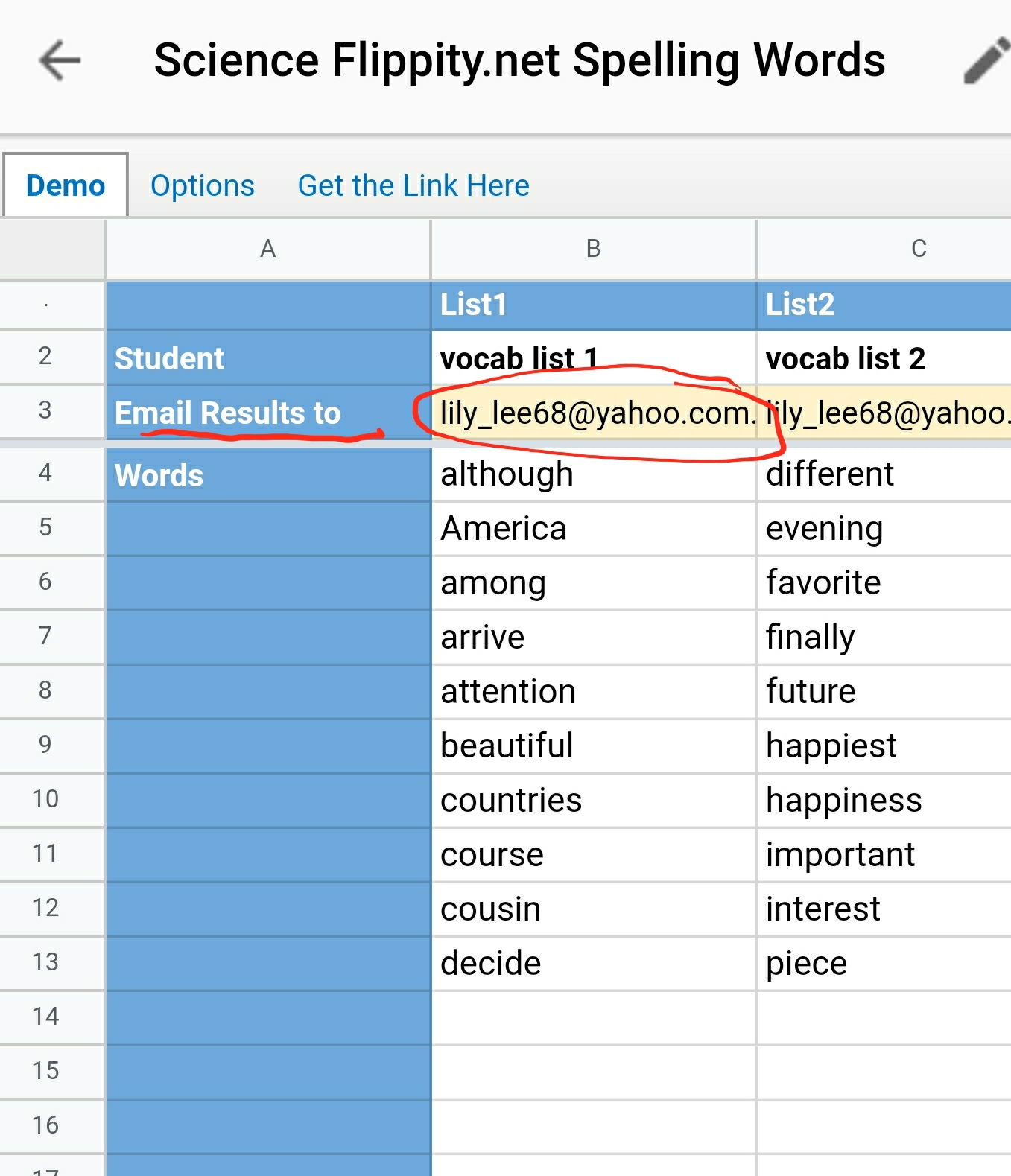
Flippity Spelling word can help the students to practice on spelling. After the list is generated using the template, the students can practice listening to the words articulated and spell it out. This is the spelling list on vocabulary -
You must really try this as it's super easy as practice and quiz are auto generated as well as some games e.g matching game, snowman, word scramble and words watch. Make a copy of the Google spreadsheet which you can edit the spelling list. Remember to publish the file (on desktop) and then get the link on the 3rd tab. The second tab has the option of choosing other language such as UK Eng, French or German. The quiz results can be emailed to you by adding your email address. Remember to edit the email or I will receive the results from your students. 😅
https://docs.google.com/spreadsheets/d/1bdxQNHVw80-PoiB_JQwFAzU3xATY11N2lInY0hojWyA/edit?usp=sharing
And you can embed flippity in SLS. This make it easy for the young ones to access.
Add in your email so that the quiz results can be sent to you.
One downside is that the results emailed does not have the name of students. Audrey Ang made a good suggestion to change the title of the list to the name of the student's
The list words can be generated into word search, word scramble etc - just click on More on the top menu
Matching game from the spelling list
Snow man
Word Scramble
Word search
You can use the random name picker to help form teams other than the options of spinner, single name or line up. Just go to flippity.net and make a copy of the template. Follow the instructions esp on publishing it to the web before it can work. After you have edited the names and publish it to the web, the link to flippity will be shown on the 2nd worksheet.
Harley have created a board game for P5 Chapter 7 to help pupils to revise vocabulary.
How to play:
1. Each pupil to roll a dice and pick a card. (Blue and green cards are vocabulary taken from 生活看板 and 我爱阅读, so that it’s easier for pupils to find from the textbook).
If they answer correctly, they will get another chance to roll the dice. Pupils can click on the tick to check the answer.
2. If they happen to land on the number boxes, they can move forward based on the number in the box.