Showing posts with label Google Sheet. Show all posts

May 22, 2021

HBL morning meet

Definitely benefitting from the sharing in SGLDC and by my colleagues as I used it for my morning meet with my form class, making it more effective.

1. Attendance and temperature taking using Google Form and spreadsheet

Shared by Yong Qin in SGLDC, he had created a Google Form and Google Spreadsheet which simplified the process of taking the attendance and temperature taking. 

The form helps to track the following: students who have/have not taken their temperature students who are late students who are not feeling well because they have a fever or because of other reasons. 

The form accepts input every day, so there is no need to maintain the form after you have set it up. I

His video demonstrating how the form works and how you can copy the form into your Google drive here

 https://www.facebook.com/groups/sglearningdesigners/permalink/1108342616320248/

 The links to the files are shown here: https://drive.google.com/drive/folders/1ugB3_EeBlSyCZzHI7FlLtU3ZVB4ETcOJ?usp=sharing 

Grateful to him and tried it out. It works!

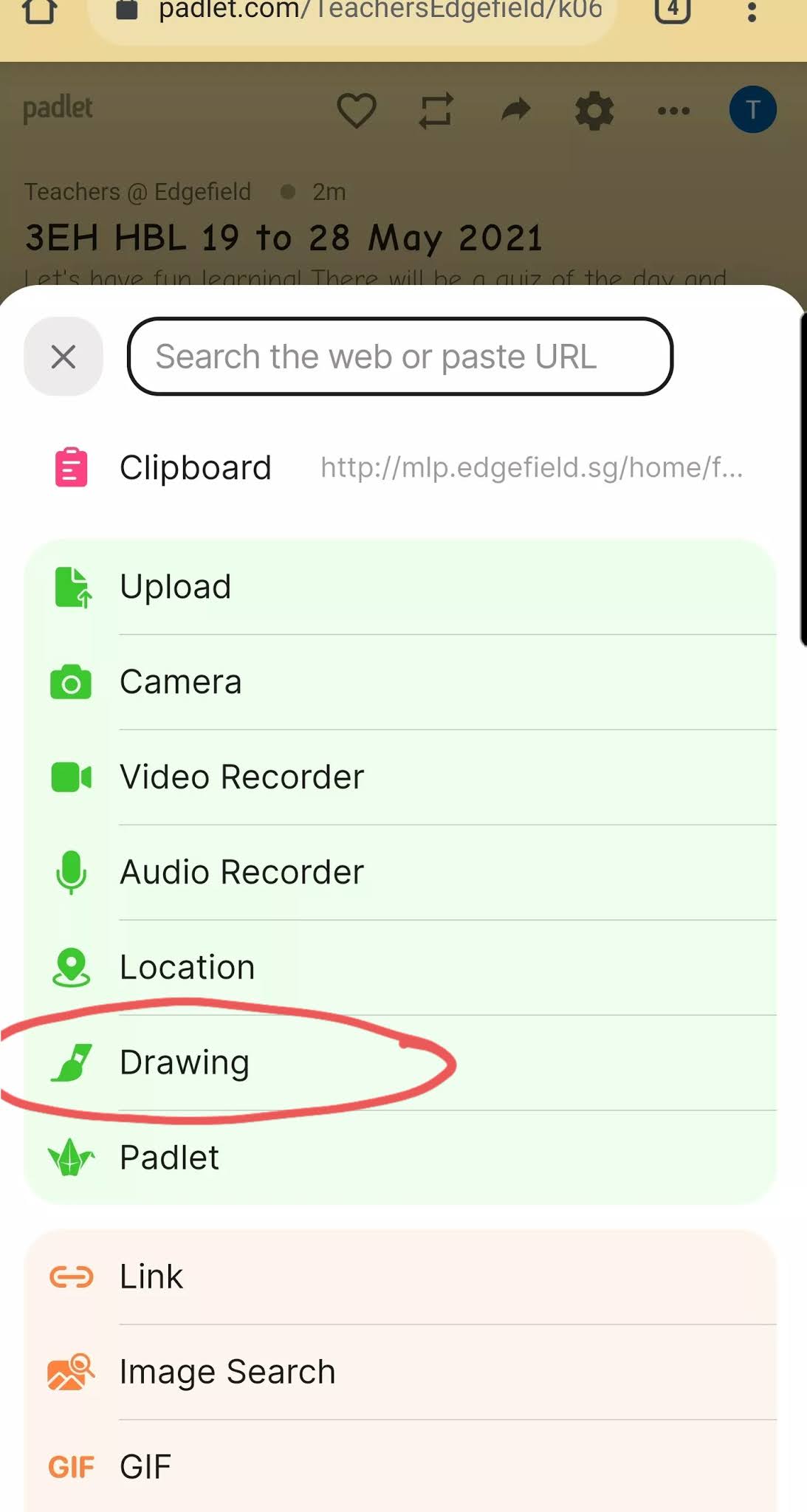
2. Using padlet for bonding activities.

Motivating them to be early with mini challenges between 7.30 to 7.45am as they are supposed to log in at 7.45am. The students could also draw or design quizzes for their classmates.



Apr 7, 2021

Share a sheet

 Just learned which will come in handy.

How to share a sheet without sharing the whole file?

Remember to click on allow access when the error message appear after you entered the above formula


Apr 4, 2020

Flippity with Google spreadsheet

You can now embed Flippity in SLS!
Click on the link below to the guide how you can embed websites, including Flippty interactives, into SLS. 

https://mo.learning.moe.edu.sg/UserGuide/Vle/teacher/lessons/embed-external-sites-whitelist.html
SLS login required

Simply amazing how easy you can can create cool stuff such as scavenger hunt (unlock each lock by answering a question), crossword, hangman, wordsearch, with the ready made Google Sheet templates. 
Have fun exploring!
http://flippity.net

Try the scavenger hunt - unlock all the locks by answering all the questions correctly! It is similar to a digital escape room and making it is so simple.

Just go to flippity.net and make a copy of the template. Follow the instructions esp on publishing it to the web before it can work. After you have edited the questions, hints and answers as well as publish it to the web, the link to flippity will be shown on the 3rd worksheet 'Get your link here'. I have tried out one on tourism for my sec 3 class - https://www.flippity.net/sh.asp?k=1UhpIMwOH-v0PNbC00OfGmIndlopTGDOsdYhJJIQZ-CQ
You can add image by inserting [[Image:imageurl]] in the question.
Or youtube video by inserting [[youtubevideourl]] in the question.

Another one which I have created - Guess the words from the picture - https://www.flippity.net/sh.php?k=1DcJDgHNyEoupOIR21mVhIkYKuAGQ7Yl0JuS8e7_3Mq4


Zoe Chai shared this in SGLDC - she used the scavenger hunt to create a mini escape room for Biology (Digestion). She embedded the link in SLS and submitted it to the community library called 'A Day in the Gastrointestinal Clinic'. Glad that her students love it. She has set the locks to be in sequential order so they cannot proceed without unlocking the previous lock. It enables her storyline to flow more smoothly.
Really love her creation. That's what I love about sharing - I learn too. Did not cross my mind to create it with a story!
You can also access it here directly: https://www.flippity.net/sh.php?k=1xOItPkzqegx5bXCBdGetCSprsGoLOsMnkYHqMvG3ijU


You can click on the second tab in the Google sheet to allow the results to be emailed to you too!

Students sometimes have problem understanding political symbols in SS or history. A fun way to learn will be using the matching game. Just realised we can do that using the Flippity.net matching game extension. I have done up a simple one My Political Symbols Matching Game on Flippity https://www.flippity.net/mg.asp?k=11PHirkRkxJT997CLYihdVeQuqPdT73Q7CJtjNP93FHM

Using the spreadsheet https://docs.google.com/spreadsheets/d/11PHirkRkxJT997CLYihdVeQuqPdT73Q7CJtjNP93FHM/edit?usp=sharing Just edit the meaning and picture link on sheet 1 and the link for Flipping will be generated on sheet 3 on the spreadsheet. Remember to click on File and Publish on to the Web before it can work.


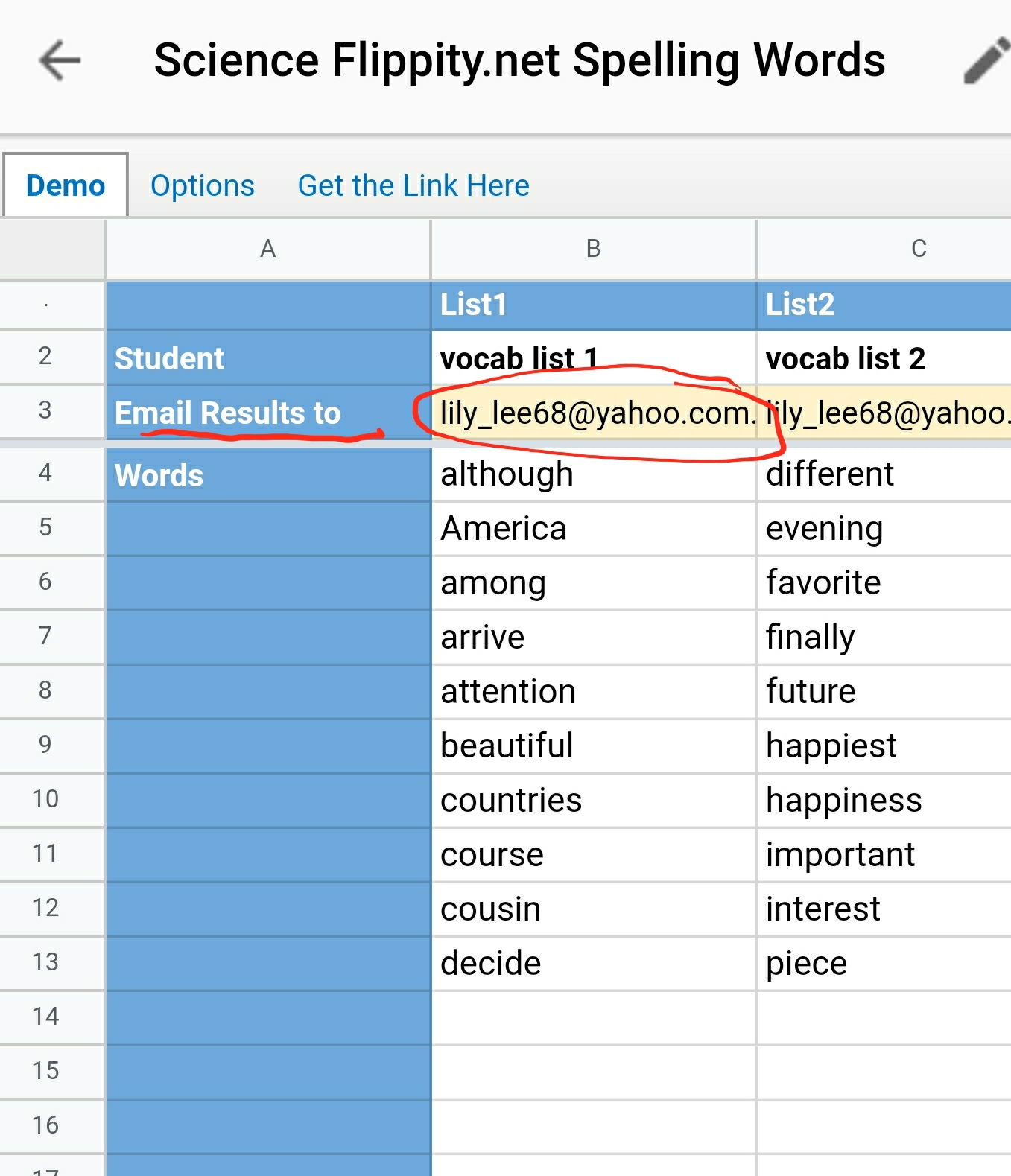
Flippity Spelling word can help the students to practice on spelling. After the list is generated using the template, the students can practice listening to the words articulated and spell it out. This is the spelling list on vocabulary -

You must really try this as it's super easy as practice and quiz are auto generated as well as some games e.g matching game, snowman, word scramble and words watch. Make a copy of the Google spreadsheet which you can edit the spelling list. Remember to publish the file (on desktop) and then get the link on the 3rd tab. The second tab has the option of choosing other language such as UK Eng, French or German. The quiz results can be emailed to you by adding your email address. Remember to edit the email or I will receive the results from your students. 😅 https://docs.google.com/spreadsheets/d/1bdxQNHVw80-PoiB_JQwFAzU3xATY11N2lInY0hojWyA/edit?usp=sharing 

And you can embed flippity in SLS. This make it easy for the young ones to access. 


Add in your email so that the quiz results can be sent to you.


One downside is that the results emailed does not have the name of students. Audrey Ang made a good suggestion to change the title of the list to the name of the student's


The list words can be generated into word search, word scramble etc - just click on More on the top menu
Matching game from the spelling list

 Snow man 
 Word Scramble

Word search


You can use the random name picker to help form teams other than the options of spinner, single name or line up.
Just go to flippity.net and make a copy of the template. Follow the instructions esp on publishing it to the web before it can work. After you have edited the names and publish it to the web, the link to flippity will be shown on the 2nd worksheet.


It supports Chinese characters too.


Updated board game by Harley 6 Mar 2021
Harley have created a board game for P5 Chapter 7 to help pupils to revise vocabulary.  

How to play: 
1. Each pupil to roll a dice and pick a card. (Blue and green cards are vocabulary taken from 生活看板 and 我爱阅读, so that it’s easier for pupils to find from the textbook). 
If they answer correctly, they will get another chance to roll the dice. Pupils can click on the tick to check the answer. 

2. If they happen to land on the number boxes, they can move forward based on the number in the box.


Updated June 2021
Kindly shared by Kate Cheng in SGLDC

Apr 23, 2019

Google Sheets to generate graphs

Sharing how I use Google Sheets to generate scatter graph, comparative line graphs and beach profile for the Coastal GI (primary data) in helping the students to analyse and represent the data they have collected at ECP.

Added on how to use the combo chart to create climograph as well using secondary data from worldclimate.com

Creating Scatter graph with best-fit line


Creating a Comparative Line Graph using a Combo Chart with two Y-axes


Creating a Climograph using a Combo Chart with two Y-axes

You can also use this function to create a climograph.  An example -https://docs.google.com/spreadsheets/d/1Y0jjusBUyi8RbZIkiZvlfngDb_DPnLXJdrc-W6fyn1A/edit?usp=sharing

You can get the rainfall and temperature data from http://www.worldclimate.com/


Creating a Beach Profile graph by inserting a line chart.


Coastal GI at ECP - https://sites.google.com/a/moe.edu.sg/sec3geog/geographical-investigation/gi---coast/gi-coast-2016
The spreadsheet which I have created:
https://docs.google.com/spreadsheets/d/1a-Y2IITjjxB6W9FmZmf5KDAhHp0EJApaf-qNT95FDwM/edit?usp=sharing

Mar 27, 2019

Google translate in Google Sheet

Google Translate in Google Sheets. Tried it out and it works... How can this be used in the classroom?


 Just use the following formula: =GOOGLETRANSLATE(A4,"en","zh")

 A4 being the cell which contains the words to be translated followed by the language it's in which is "en" (English), then the language to be translated to which is "zh" (Chinese)

 "in" Indonesian
"ja" Japanese
 "ko" Korean


=GOOGLETRANSLATE(B18,"auto","en")
Auto detect the language of the source


May 12, 2018

Google form, Google Sheet and QR codes amazing race

Created an amazing race style "Geohunt" using Google form and QR codes.

 
Using Google form, I made use of the setting to go to different sections according to the option chosen to enable the groups to start off their race at different stations. By setting it as a quiz, points can be awarded to the correct answer at the stations. The total points will be calculated and shown immediately after the student submit the form.

In the edit mode, create the number of sections e.g. I have 20 stations and plus the home page which they select their group, so I created 21 sections. For sections which the questions are similar e.g. the measurements for weather, I simply duplicated them and change the station number. I could also reorder them by clicking on move section.

To add question in the section just click on the plus(+)icon. You can also insert picture or video.


As shown in the picture below, set the question on whether to proceed to the next station as required. Then click on the : (next to required), which is the setting, and click on "Go to section based on answer".


The picture below shows the options of being able to direct them to different sections based on option they have chosen, in this case their group number,  as shown on the edit mode. However when the students access it, they will not see "go to section..."


The picture below shows what the student will see when they access the form. They just need to click on their group and then click on next. They will automatically be directed to the station assigned.


For e.g. when group 20 click on group 20 and then next, it will proceed to the section on station 20.


And when they have completed the task at station 20, the group will click on "Go to the next station" and they will be directed to station 1. So they will just proceed until they reach station 19 then they will choose the option "completed - submit form“ and all their responses will be captured.


I have a total of close to 100 students and did not have enough weather tracker for each group. Initial plan was to get the students to take turn to go to the five stations which the teacher will pass them the weather tracker at the station. But that would mean 4 groups or 20 students at a station which will be too crowded.

That's why I need to create the other 15 stations with QR code in which they will scan and get info to answer the question in the Google form so that they are all spread out in the 20 stations in the school. As I have set it as a quiz, points are automatically given and total up for the race.


You will need to set the question as required so that the students will choose the option to proceed to next station or if they have completed the 20 stations, they can click on "completed - submit form"


Once they choose the option to submit form after completing the 20 stations, they will be directed to this page to submit.


On the edit mode I can collate their responses using the CSV file. They will then use the data to create graphs and analyse their findings.


As introduced by Pierre in the sg learning designer circle, the Google form can be used to create customised quizzes which the students can be directed to another question/story line (section) based on their response. The Google form can be used to create a "Choose your adventure" story. Great for English and even Science.

You can check out how to create the quiz by watching the video below. Hopefully this inspires you to create a personalised quiz for your students to match their abilities. 


My other post on the use of QR codes - http://ezitnew.blogspot.sg/2015/11/qr-codes.html


The Google form accessed by the students:
https://docs.google.com/forms/d/e/1FAIpQLSd6-5Mmi3im7WATgCSzUK8VWhvFVnLmWpdnlaF6mDHL7EyObg/viewform

One main advantage of using Google form is that all the responses are collated on a csv file which can then be converted to a spreadsheet which the students can share the data collated - part of collaborative learning.https://docs.google.com/spreadsheets/d/1w7Mktt6AGOF4RPf0s_rj3TX1p75TmG50CBV-Nw_SzhQ/edit?usp=sharing


The students can also insert chart to represent the data - e.g. scatter graph and comparative line graph using the data extracted.https://docs.google.com/spreadsheets/d/1fbHMvcHbsGHccQh38W7XZl7Sy8yF0EibqM18ZDkumC8/edit?usp=sharing