
Create a new word document and choose a newsletter template.
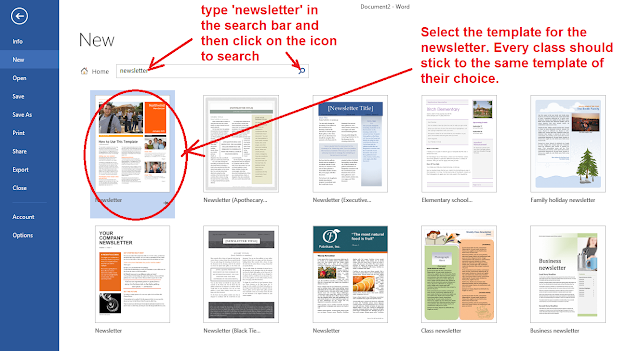
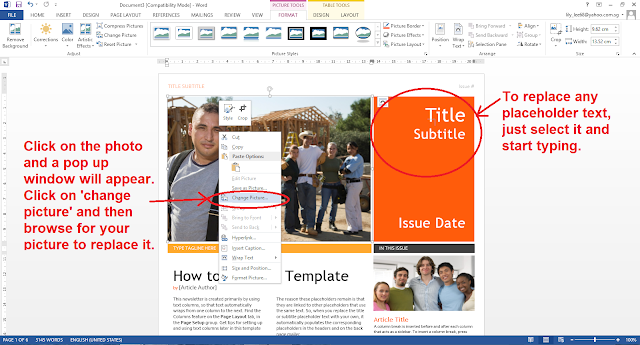
Students can then replace the text and photos on the template as shown below. They can add more pages or delete them as necessary.
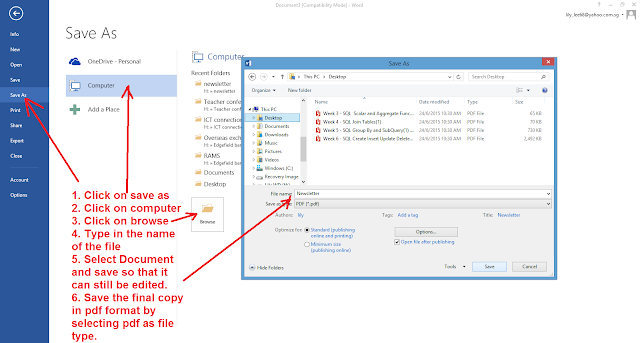
They can save the document in word document for editing as well as pdf for the final version.
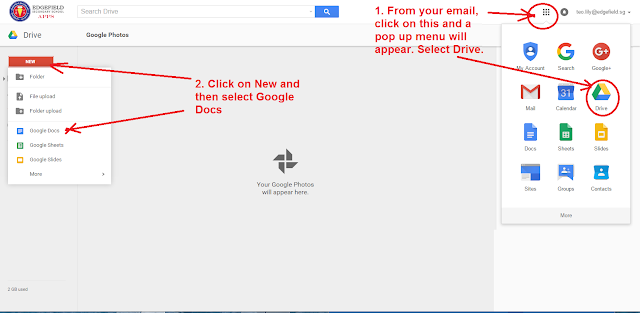
By using Google Docs, the students can collaborate and contribute the part assigned to them as well as read the part completed by their classmate. They can do this by accessing Google drive through their email account. They can then create the Google docs in the Google drive.
The leader of the team can open up the file which they have created using the Microsoft Word templates.
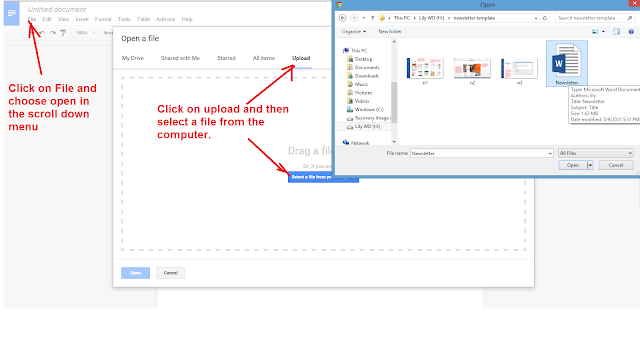
The leader can then assign rights to his/her team members to edit the document.


 After you had click on the icon to compress the picture, a pop-up box like the one below will appear:
  Select 'all pictures in document' and 'web/screen' then click on OK. A pop-up box will appear again - just click 'Apply".