Showing posts with label Google classroom. Show all posts

Apr 2, 2023

Inquiry-based learning bite-sized fieldwork

Decided to carry out an inquiry-based learning on Geographical Methods under the topic Geography in Everyday Life in the new Upper Sec Geography syllabus.

We had always been using the inquiry-based learning in our Geographical Investigation. As we have completed the part on how nature benefitted people by lowering ambient temperatures via evapotranspiration and shade, I wanted to sparkle their curiosity on whether  vegetation and shade has an impact on temperatures within the school compound.


Inquiry-based learning is powerful as it engages the students by making real-world connections through exploration. The students collect and analyse the data that they have collected before they present and conclude.

A good trigger in SLS Activity A under Geographical Methods, prompting them to think of the research question and hypothesis which they can use in the fieldwork in school.  The students added crafted the research question and hypothesis using the interactive thinking tool in SLS. The teacher and peers commented on the hypothesis, especially whether it contains two measurable variables which they can use to test the hypothesis. There is promotion of thinking and discission.


I showed a map of the school, which I had traced from a Google Earth screenshot, and marked 5 sites which I gotten the class to guess which site has the highest temperature and give reason for their answer. Each group picked one which they think is the hottest. Then I lead them on to craft their hypothesis based on two measurable variables.


The instructions were given in Google Classroom which I have attached a Google spreadsheet which the groups can collaborate in the collection of data and analysis. The advantage of attaching the Google spreadsheet in Google classroom is that I can choose the option of them being able to  edit as a group. I do not need to add sharing rights to individual student. If there are other teachers in the group, they will be added too. This promote collaborative learning as the groups collected more data which they can analyse and interpret together.


Each group recorded the data they measured and observed on the respective tab on the spreadsheet and I could see their live updates in class when they were at various spots collecting the data. I have projected the spreadsheet onto the screen and transferred their temperature data onto the whiteboard. That was when I noticed one group's data was quite off at 22 degree Celsius plus whereas the rest ranges from 26  to 27.6 Celsius degree. Halfway transferring the data, I saw the data being erased and the new ones recorded were above 26 degree Celsius. The group input the data collected to their respective tab in the Google Spreadsheet and will instantly show on the main page (first tab).


Got the group to analyse the data they collected starting by calling out one student to calculate the mean (one of the geographical methods they had just learned). The rest looked on eagerly to see whether the spot they selected earlier was indeed the hottest. 

While the student was calculating the mean, I checked on the group which has different data recorded at first. They looked a bit embarrassed and one of them said, "Mrs Lee, sorry we did not realise that we pressed on the weather tracker wrongly and measured density instead of temperature. But we ran back and re+measured all the spots". A teachable moment as I went through with the them the validity of data can be compromised by human error. 

We also noticed that one of the readings at the school field was exceptionally high, higher than that of the parade square. However, by averaging the data, the anomaly is reduced. Another authentic learning point about using data.

The groups made incredible observations too e.geven within a site, some parts get some shade whereas some parts none due to the buildings casting a shadow. They were at the sites at different time throughout the 25 mins so the time could be also another influencing factor. One group even raised the question that our school field is made of artificial grass so the impact could have been different if it is real grass. More questions were raised and indeed might sparkle another round of investigation 😅  Great to get them curious!


The new syllabus did not really prescribe any GI but it also give rise to opportunity for the students to engage in a more authentic learning environment by deciding what they want to investigate. 

Another class' analysis on the bite-sized fieldwork 22 Mar 2023. I changed one location from guard house to the bamboo garden. Another anomaly was spotted and the class learned collaboratively as the groups' data were analysis collectively as a class.


One more class bite-sized fieldwork on 29 Mar 2023. They measured the temperatures in the afternoon so temperatures are higher. But we were quite puzzled with one of the recordings at 39.5 degree Celsius which is exceptionally high. Again the idea of an anomaly was brought in and how averaging the data reduce the anomaly. Teachable moment.


A copy of student's Google Spreadsheet:

 https://docs.google.com/spreadsheets/d/1j_gzexJXlQ6jx5Nv8yMS-lJB8JAcBIOw_VUokub0G14/edit?usp=drivesdk


My Reflection

𝗛𝗼𝘄 𝗱𝗶𝗱 𝘁𝗵𝗲 𝘂𝘀𝗲 𝗼𝗳 𝘁𝗲𝗰𝗵𝗻𝗼𝗹𝗼𝗴𝘆 𝗲𝗻𝗵𝗮𝗻𝗰𝗲 𝘀𝘁𝘂𝗱𝗲𝗻𝘁𝘀' 𝗹𝗲𝗮𝗿𝗻𝗶𝗻𝗴 𝗲𝘅𝗽𝗲𝗿𝗶𝗲𝗻𝗰𝗲?

The interactive thinking skill tool in SLS allowed the students to process and improve on their answers based on the teacher's feedback. It also allowed thinking to be made visible. Key Application of Technology: Assessment for Learning 

The students were able to work on the collection and analysis of the data collaborately with the use of the Google spreadsheet. Key Application of Technology: Learn together 

The use of Google Spreadsheet also allowed them to represent the data instantly with a bar graph through inserting a chart instead of drawing on paper. Important points such as title, labelling of axes as well as the values on the axes can be taught. They have also learned the skills of using a spreadsheet.

Through the inquiry-based learning, students learned in an authentic learning environment and not just facts from the teachers or textbook. They have learned that mistakes made can be a learning point too.


𝗪𝗵𝗮𝘁 𝘄𝗲𝗿𝗲 𝘀𝗼𝗺𝗲 𝗹𝗲𝗮𝗿𝗻𝗶𝗻𝗴 𝗱𝗶𝗳𝗳𝗶𝗰𝘂𝗹𝘁𝗶𝗲𝘀 𝘆𝗼𝘂𝗿 𝘀𝘁𝘂𝗱𝗲𝗻𝘁𝘀 𝗳𝗮𝗰𝗲𝗱?

As the students were given the task of crafting their research question and hypothesis on the ITT pre-lesson, there were a number of students showing difficulties in managing that. I had to clarify points such as whether there are 2 variables which can measured and whether it is feasible to be carried out in the school.


They were not able to change the minimum and maximum values for the Y-axis on the Google spreadsheet using their iPad so they actually changed it on my desktop.


𝗛𝗼𝘄 𝗺𝗶𝗴𝗵𝘁 𝘆𝗼𝘂 𝗺𝗼𝗱𝗶𝗳𝘆 𝘁𝗵𝗲 𝗹𝗲𝘀𝘀𝗼𝗻 𝘁𝗼 𝗵𝗲𝗹𝗽 𝘁𝗵𝗲𝗺 𝗰𝗹𝗼𝘀𝗲 𝘁𝗵𝗲 𝗹𝗲𝗮𝗿𝗻𝗶𝗻𝗴 𝗴𝗮𝗽?

I would give more scaffolding for the ITT task before using it as a trigger.

I have actually modified the lesson twice. One to change one of the sites to a more suitable location and second to auto reflect the group's data onto the main spreadsheet.

The above was what I adapted from the old syllabus weather GI: https://geogshare.blogspot.com/2021/05/blended-learning-for-gi.html

Mar 8, 2022

Setting routine and varying tasks in Google Classroom

I have been using the RISE framework to give instructions in Google classroom to set up the routine. 
Resources
Instructions
Submission
Extension of Learning

By setting up the routine in Google Classroom, the students are clearer on what to expect and are better engaged. They are also more self-directed and motivated to extend their learning beyond the textbook.

I did a quick survey using Google Form at the start of the term to find out more about what the students already knew about the subject and how they would like to learn. I had then acted on it and created a variety of tasks - reflection on current geographical issues, response to a video, interactive game, written response to structural questions, interpreting diagrams, mind mapping, Kahoot etc


Students are more engaged and see the relevance and authenticity of their learning. 

At the end of the chapter, I would get them to fill in another form which they self-evaluate on whether they have fulfilled the learning objectives as well as giving me feedback whether the strategies I used are effective for their learning. It also helped me to identify learning gaps and I would address them during revision as well as better plan for the next topic. 

Through the self evaluation, the students are also more critical of their learning and would be more motivated to close their own learning gaps. The ability to assess their own learning also motivate them to move forward upon knowing they are able to achieve the learning objectives.

Each of them will also get a certificate emailed upon completion as I have added them using the certify'em extension in Google form.
You can read more about the use here
http://ezitnew.blogspot.com/2019/03/google-form-add-on.html


Feb 27, 2022

Scanner on Google classroom

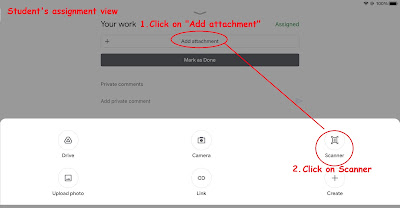
There is a new feature in Google classroom which students can scan their work and submit.


After capturing an image, students can crop the image and add additional pages.


The scanner is better than just using the camera as the students can crop and adjust the image of their handwritten work or drawing. 

When the students save their photos, a PDF is generated and attached to the Google Classroom assignment which can easily be opened by the teacher.

A relief for us as some students submitted work using a few photos and it is a nightmare going through one by one. The image will be clearer too.

My posts on Google Classroom https://ezitnew.blogspot.com/search/label/Google%20classroom?m=1

Dec 20, 2021

SGLDC virtual meet VI

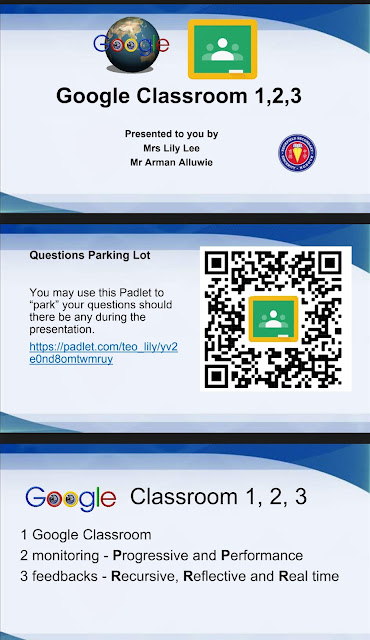
I shared on the use of Google Classroom with Arman for the SGLDC Virtual meet. The link to the slides and video recording of our sharing in SGLDC virtual meet on Google classroom.


Questions and answers plus resource links on pallet.


Apr 7, 2021

More on Google Classroom

I shared last year how I have gottten the students to write the HBL journal using Google Doc. I assigned it in Google Classroom and made a copy for each student. They could color and write on the doc. I supposed they could do so as the image was inserted into the Google Doc I had created for them.

The students definitely could type on Google Doc. You can see below that they have typed their answer below the questions. I would then open it up in Google Classroom App my iPad or Samsung Note to mark it just like I would on paper.


Rich text formatting is available Now!


What I do presently to enhance the text without the rich text formatting was either to highlight the text and press ctrl+U to underline or ctrl+B to highlight. I could also generate fancy text using the following website and then copy and paste: https://lingojam.com/FancyTextGenerator


Mar 27, 2021

DI for Groupwork in drive

The following is for teachers who already have their classes in Google Classroom.

You can select the students and then give them the sharing right to a folder/document/spreadsheet/slide easily with the email generated in Google Classroom.


You can also select the students which you want to give the rights to for a particular folder/doc/slide/spreadsheet rather than select all.

To select the emails - click on the first email then press shift and click on the last email to highlight the email. Press Ctrl with C to copy


Nov 21, 2020

Blended Learning and Differentiated Instructions in Google Classroom

As mentioned in my earlier posts, Google classroom has been my life saver during the FHBL for my upper sec classes as we could continue to provide the resources and mark the assignments just like  on paper using the Google classroom app.

The following tutorial on a blended lesson using Google Classroom was shared by Gary on SGLDC.

https://www.facebook.com/groups/sglearningdesigners/permalink/997040177450493/


The tutorial shows simple steps to assign assignments in Google Classroom for one Blended Learning lesson: 

A) Pre-lesson Self-directed learning quiz (self-marked MCQs with video). 

B) During lesson Activity - Group Assignment Lesson activity (convert from Word to Google Doc / Slide) and 

C) Exit Ticket to consolidate learning
Post-Lesson quiz (from Word to Form - MCQ) 

Like what Gary also shared, it's important to set topic for categorization of the resources in Google Classroom. You can do so by topic or resource type e.g assignment, test, PowerPoint slides, 

He showed how you can assign short Pre-Lesson 

View his Google Classroom 2020-2021 Tutorial - Creating Blended Lesson: 

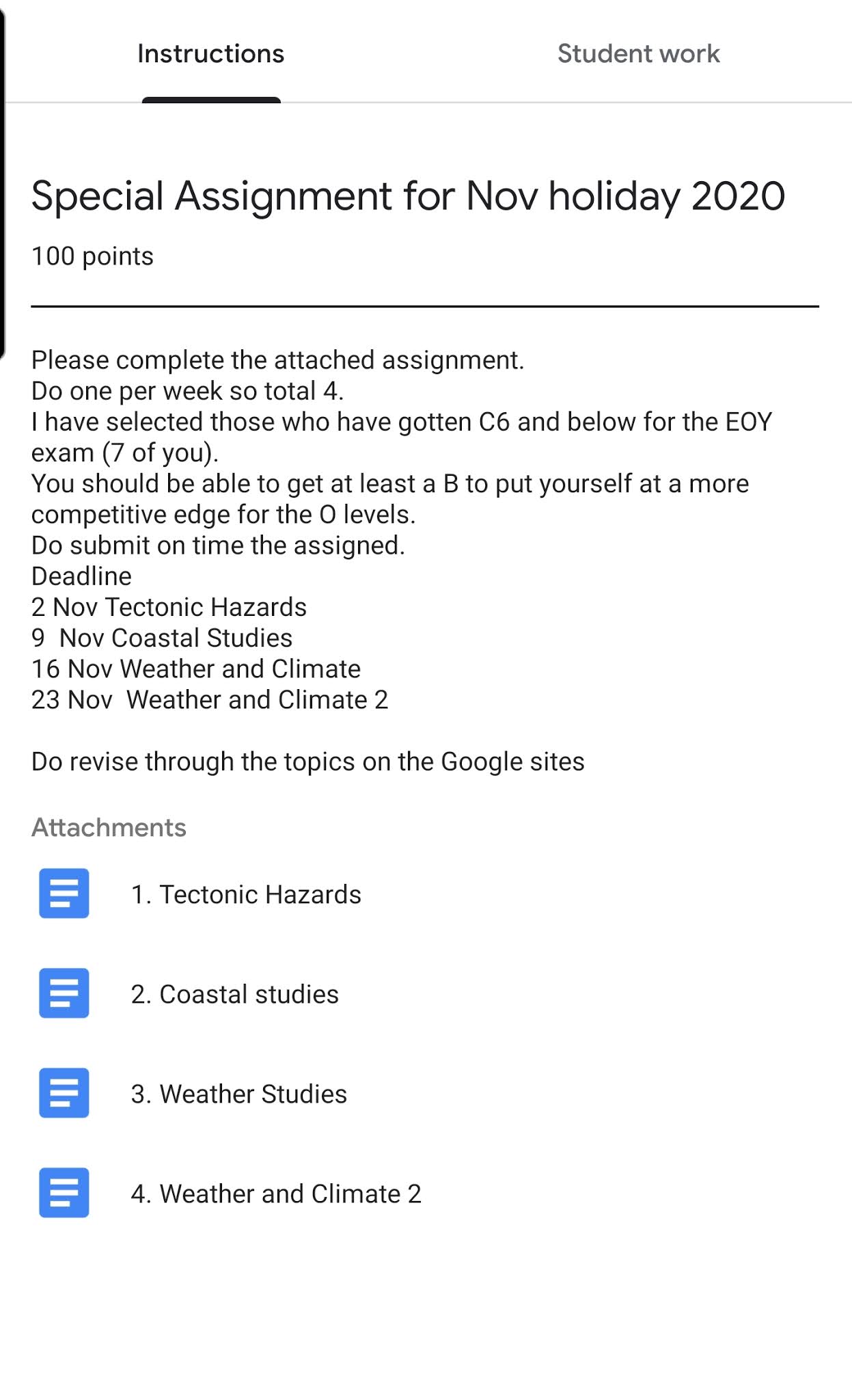
The one I have used most is assigning work by clicking on make a copy for each student via Google Doc in which I could mark on them using the Goggle Classroom app just like paper and pen. I would also like to add on how differentiated learning can be applied. I have selected 7 students (just check on the list from the class)for a special holiday assignment in which I assigned 4 worksheets using Google Doc which I instructed them to turn in one every week. I marked and returned every week. It would be saved as an edited file. I would then highlight some of the areas which they are weak in to take note of. Just to highlight that this form of differentiated learning is possible in Google classroom.


These were submitted over the 4 weeks.


You can click on the label below to see more of my posts on the use of Google Classroom.

Aug 6, 2020

Mr Vacca's Tech toolkit


Thanks to Mr. Bill Vacca for his kind permission to share this. 

Updated doc with links 2021


Google for Edu. Tech Toolkit 2021 


May 28, 2020

Timed quiz in Google classroom

Just learned you can create a timed quiz in Google Classroom by using Google Forms, the Forms add-on FormLimiter, and the scheduling function in Google Classroom.


Step-by-step directions:
1. Create a new quiz assignment in Classwork in Google Classroom.
2. Create your quiz in the Google Form that was created by step 1 above.
3. Install the FormLimiter add-on for Google Forms.
4. Enable a date and time limit in the FormLimiter add-on.
5. Use the scheduling tool in Google Classroom to make your quiz live at a specific time.

Great for assessment!

Mar 19, 2020

Google Classroom

I have been using Google Classroom for four years now. The students have definitely found it useful in their feedback.

I find it useful that I can assign the same materials or work to a few classes simultaneously just by selecting the classes in the drop down list. You can also select only certain students within the class.

I also like it that the works which the students submitted are all automatically saved in a folder in the Google drive which you can easily download.

The students find it useful when I classify the materials by topics or types (notes, PowerPoint, practice papers, assignments).

If you need the students to work on a copy of doc or slides individually, just select make a copy for each student and schedule the assignment too.

With the individualized copy for each student, I could comment on their copy for them to improve on their work. This is also useful cos you can also save comments in the comment bank available in the comment function. Or simply save on a word doc which you can copy and paste cos some comments are generic or common.

I can also comment and mark directly on their copy and it will be saved as a PDF file which I will grade and return. This can be done via the Google classroom App on my iPad (can be done on phone though screen is small).


Click on the pen icon to mark.


You can choose the pen, highlighter or eraser.


No problem even if the student has written on paper. He can still submit as a picture file. You can open it up and mark like on the Google doc. But if it's more than a page an app such as camscanner to capture the images and collate to a single PDF file will be easier for marking.


You will see the marked document saved as a PDF file. You can enter marks and return to student.

My colleague has used the above to do the marking and I am really awed by his speed and ability to give very constructive feedback to the students who have taken note of the comments on the marked script as well as the private comments for improvement.

.  


I am also trying out the rubric function which is very useful for our level descriptor question and alternative assessment marking. 

All the submitted works are shared in the drive.


I also get the students to reflect on geographical issues using Google classroom. It's great in getting the students in seeing the relevance of what they are studying.


Amazing videos from Daryl Chan on how to use Google Classroom for teachers and students


A quick 36-second guide on you can make a copy for each student, assign to multiple classes and retrieve their work from a folder.


A good tutorial on the use of Google Classroom.


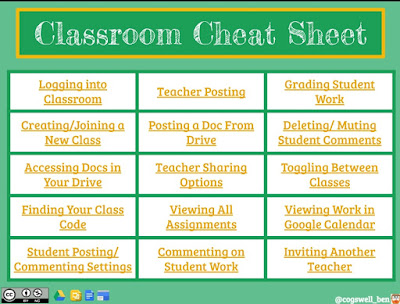
Google Classroom Cheat sheet.

https://docs.google.com/presentation/d/1QRv8HI2mSNVmwNEz-PLoqDPMqexjZy-hHT-nzafU3ro/edit?usp=drivesdk

Good tips on emailing students, grading, control over posting and commenting.

Integrating Google meet in Google classroom
https://www.controlaltachieve.com/2020/03/classroom-videos.html?m=1

My post on collaboration using Google classroom 2019
http://ezitnew.blogspot.com/2019/07/collaboration-using-google-classroom.html?m=1

Edtech Mr Brown guide
https://edtechmrbrown.com/google-classroom-basics/

Some tips on Google classroom