Mar 4, 2014

Using popplets for presentation and collaborative learning

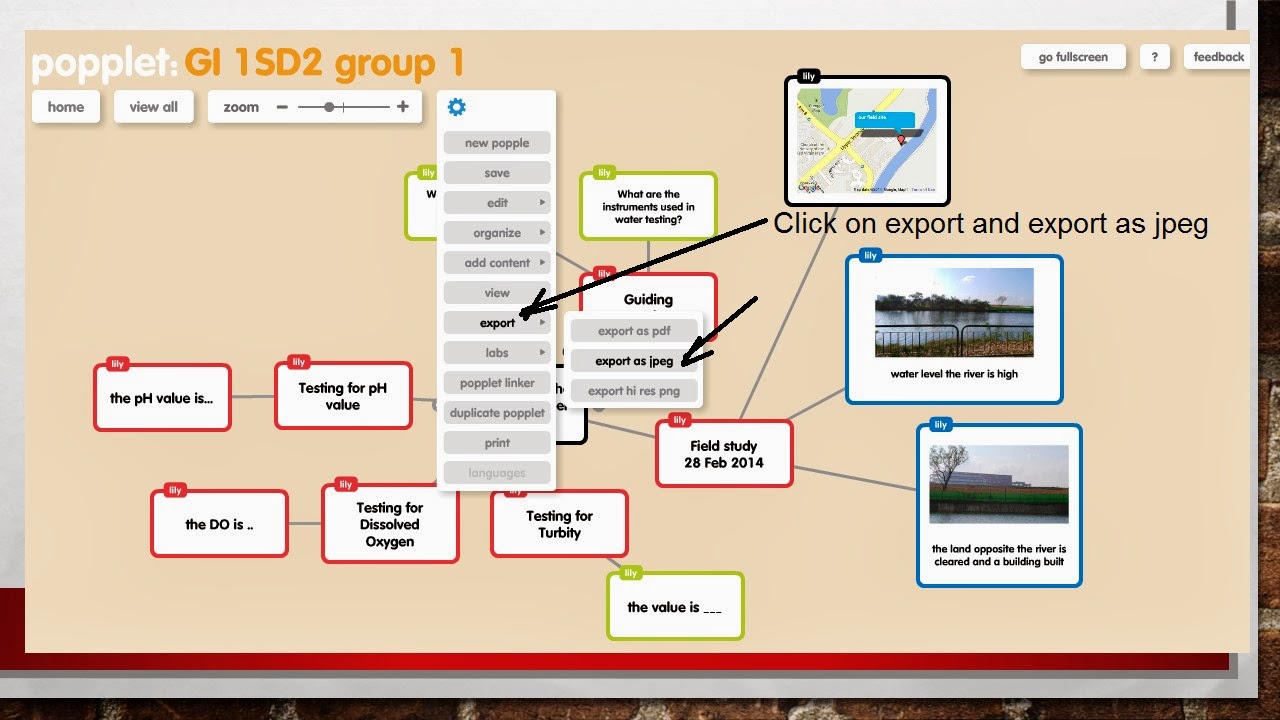
The Sec 1 used popplets to present their findings for their Geographical investigation on how clean the water is at Sungei Serangoon. It's good for them to use popplets as they can collaboratively work on the project - inserting a google map of the field site as well as pictures and findings of their investigation.
 
The following is the instruction on how to create popplets:
Sign up a new account @ http://popplet.com/app/#/signup
you can then login with http://popplet.com/app/#/home


My Sec 4 classes also used it as a collaborative tool to summarise their learnings on the topic tourism. This is the virtual gallery of their mindmaps using popplets - http://tourismpopplet.blogspot.sg/

Jan 11, 2014

Powerpoint templates

Many of us are using powerpoints and the following websites have some nice templates for free download:

Free Powerpoint templates for download:

http://www.free-power-point-templates.com/
http://office.microsoft.com/en-us/templates/powerpoint-templates-FX102828209.aspx


Make your powerpoint presentation interesting by using it to create games - Free Powerpoint Game templates for download:

I like the what is behind the box? template which will really get the students to look into pictures and guess the concept which is delivered by the picture.. they will analyse parts of the picture as they are being revealed slowly. My colleague also used it for the National Day game show last year.

I like the big board game too - just replace the topics and the questions and you create your own game show! 
The teams get to choose the topics and the questions.
If they get it right the points are recorded at the bottom of the board. 
Download Big Board Facts
Download Big Board Facts with Answers Slide

Jan 2, 2014

Random pick and timer

A good tool to use to randomly pick students: http://www.classtools.net/education-games-php/fruit_machine you can just copy and paste from excel the class list. Click on remove after the student had been selected so that he or she will not be selected again. Or you can click on edit and edit the list anytime.
 
Another useful tool will be the timer for group or class work: http://www.timeanddate.com/timer/#

Oct 14, 2013

Infogr.am

You can find out the distance of the country of the origin of the tourist from Singapore here:
Create an account @ http://infogr.am/ - click on "create" and then click on any of the infographics template. 


Double click on the text box and type in your title

Delete the chart and add a new one by clicking on "add chart" as shown below.

 Choose the type of graph you want your data to be represented.


Double click to edit the chart.

Clear all the data.

After you cleared all data,  open the excel file as shown below. Copy and paste the data back to infogr.am


You can also create a map with the same data - click on "add a map"


Aug 27, 2013

Using Google Map to represent data

To find the latitudes and longitudes of sites which you are collating the data - log onto to Google Map, right click on the location of the site and then click on the green marker and the latitude and longitude will be shown.
 
The following are the various sites in my school.
 
 LatitudeLongitude
Parade Square1.37523103.902154
Field 
1.374803
103.901546
Pond1.374768103.902581
Canteen1.37479103.902141
Basketball court1.374162103.902117
 
A google form is generated for the group to enter the respective data they have collected:


The data which the group enter will appear on the spread sheet in Google Doc. Download it as a csv file.
 
Go to https://mapsengine.google.com/map/u/0/ and click on "new map"
 Click on "import"   

Import the csv file which you have downloaded earlier.


 Click on" Lat of Location" and a pop up menu will appear - click on "Latitude"
 
  Click on" Long of Location" and a pop up menu will appear - click on "Longitude"

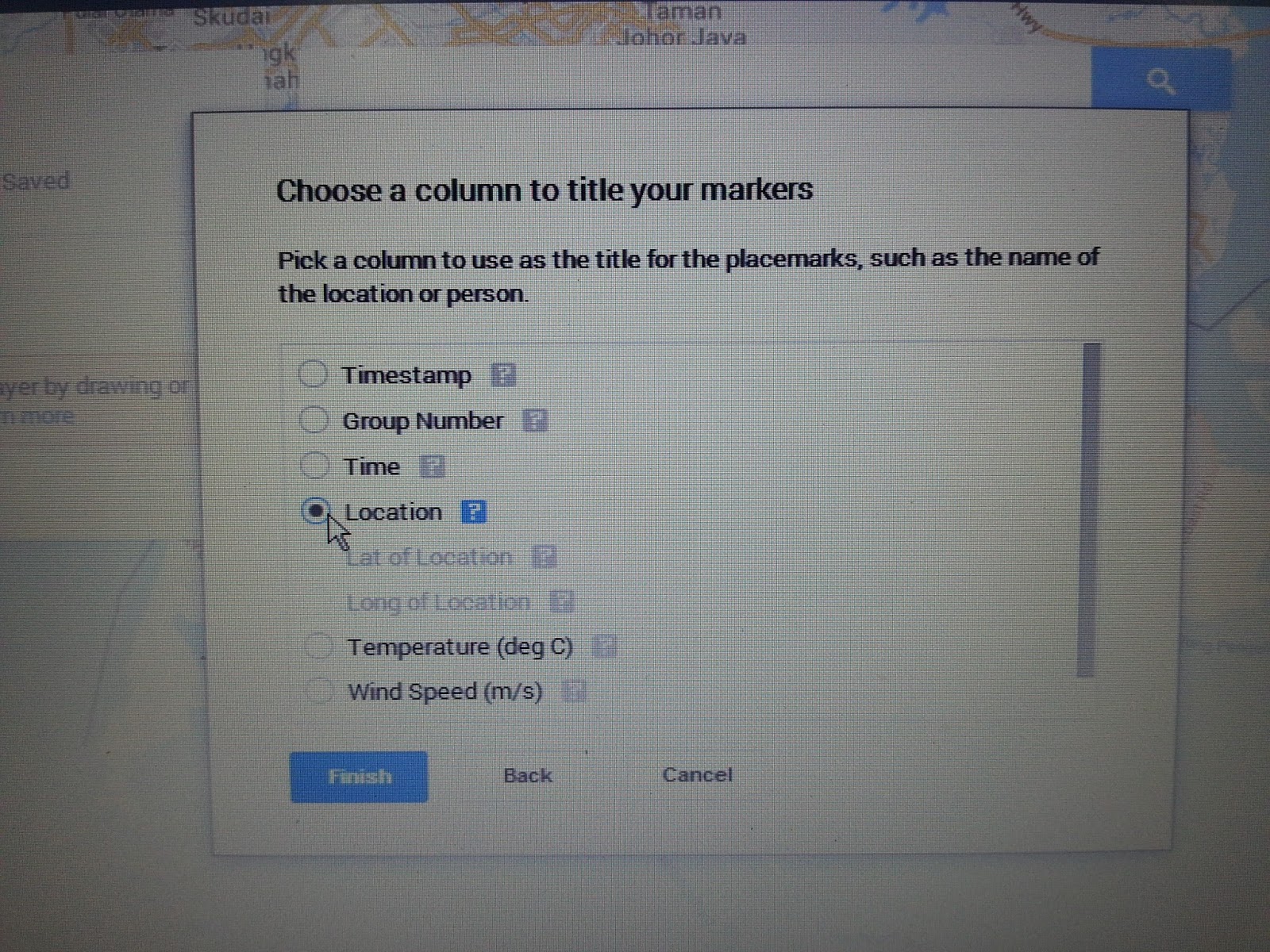
Click on "continue" and then click on " Location" and "Finish"

 
 Click on "style" to customise the appearance of the layer features on the map.
 
Click on the arrow key next to "base map" and choose "satellite" from the pop up menu.


Click on "style" then "individual style" and click on "temperatures" 
 
 You can then click on "ranges" and the colour you like to represent the temperature.
 
You can click on "data" to view and edit the data.