Forgot to share that they can switch off the audio in setting. I hope they are reading this. 😁
As I share, I learn.
Learned from my colleague there is a similar app - Explain everything - might explore that.
Some hiccups in the sharing which probably needs to feedback to app developer
1. Some cannot login - it says profile not found. student will get discouraged when cannot login
2. Some of the drawing (annotation) are not visible on the other ipad (host) - not captured in the recording as well
3. though sharing can be done on browser, recording function not visible.
Good points:
3. That with ipads - sharing the recordings or drawing is easy with airdrop
4. I could collect the recordings from the different group of teachers - it can be saved for future reference.
Another new feature on Kahoot is that you can assign it as homework. Students can play the challenges in their own time and get instant feedback.
However the students can only run it on the kahoot app so they need to download it.
You can share the link and pin in the Google classroom, via email or even WhatsApp. I normally give them a 3 day window for the challenge. You can then get the results by clicking on the Kahoot you have assigned as homework and then click on the challenge followed by the leadership board. Make sure you are signed in to your account.
Click on the top menu on questions to see the results of individual question.
What I like most is that by analysing the results, I could see the questions which the students are weakest in and I could then clarify in class e.g. students are still weak in wave refraction and impacts on headland and bay.
I was rather surprised that there are students who cannot identify a sea arch. This is definitely something which the challenge help me to see parts which I have assumed that the students already knew.
Again my reservation on using this is that no all have smart phone which they need to download the app. But overtime as smartphone or even iPad are available to all, this should not be an issue then.
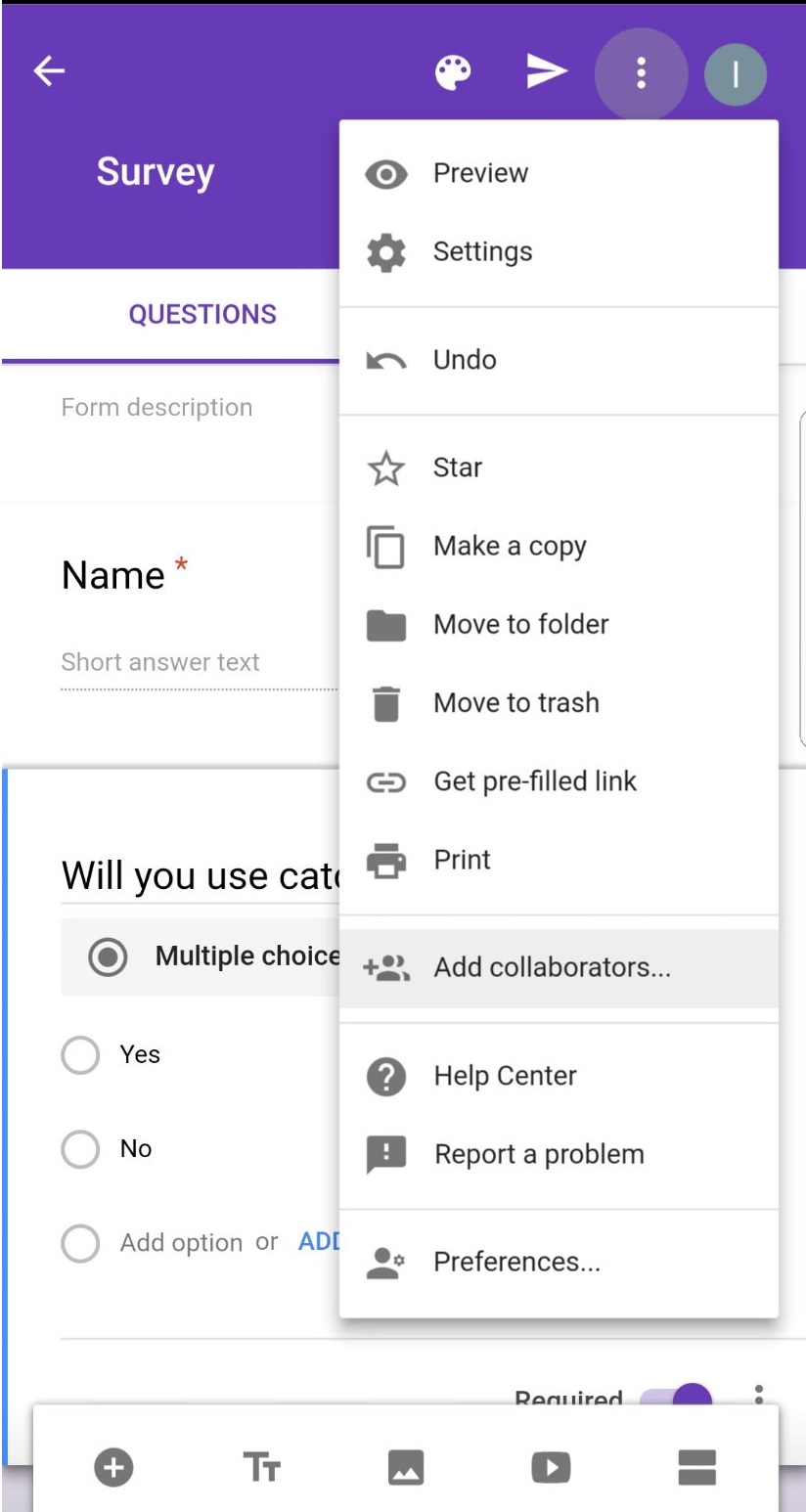
Had been using Google Form to carry out surveys which forms part of geographical investigation. Google Form is also good for collating responses. However there is a need to be connected to the internet in order to use Google Form to collect data. The android app is known as G-form for the Google Forms.
Feed2go is available in apple store ( was hoping to see it in playstore for android) and I must say it is very user friendly with the ability to enter the data offline and upload once there is internet connection.
You can chose the type of question to create - liket scale or closed questions with option
You can also choose open-ended questions with the choice of 1 line answer or longer text.
You can change the page layout in the setting from the top menu.
Once the questionnaire is completed, you can start the survey. This is what you will see on the screen - just press start and click on start.
Just fill up the responses and then it will go a page similar to the above where you can click on start to enter the responses from the 2nd respondent. Click on Finished once all the surveys are completed.
You can click on results to see the collated responses.
You can also email the responses in csv format - in which the responses captured by different groups can be collated by the team leader in Microsoft excel. Using Microsoft excel the results can be presented by inserting charts as well.
My colleague, Elisabeth, introduced me to the quiz function of Google form. Will explore that soon. Another teacher in the sg learning designer circle, Pierre , mentioned that there is a feature where you can design for a differentiated task also. For example, you have seen in some surveys, if you answer Q1, you will be directed to questions Q3. And if you answer Q2, you will be directed to Q4. This allows you to possibly design your quiz to help "direct" students who are weaker to a different set of questions. Would really love to try out and reflect on the blog soon.
Exploring the affordance of the liveboard app. It looks very promising with the ability to collaborate real time, either online or even without data with people nearby.
Watch this video on the liveboard app:
I like the fact that I can annotate on the pictures taken and then shared instantly and the students collaborate with team members in analysing the data. Thinking of using the app for geographical investigation with ipads.Digitising the task of annotating pictures or fieldsketch will make it easier for the students to work collaboratively in make amendment and addition together.
It can also record and share what is written on the screen.
Usage is simple. You can download the app via playstore or apple store. Just sign up for the account upon login. Most importantly - it is free!
It can also be shared on browser (chrome) except that the recording function will not be there - https://app.liveboard.online/
Tried it out with a small group today in explaining a lesson and realised that it is a good tool for remote teaching too. 2 students from 2 diff classes needed explanation on how monsoon affect India's climate thus I told them to download and showed them using the liveboard. from home. They clarified their doubts using the chat function. So it is useful in explaining to small groups online real time. Usage is simple too. Just start the session and invite them with the code which can be sent via WhatsApp.
The chat window is on the right hand side which made it easier to clarify any doubts the students have.
The girl find it useful as she could record the session as well. The boy was struggling and keep erasing instead of adding to the map.
The session can be saved as shown under recording as shown above.
The following is a recording of how I explained the formation and differences between stratovolcano and shield volcano to a student during a live tutorial.
As feedback by the student it is a good app as he can converse and clarify with the teacher or collaborate with other students on an idea and able to retrieve the information even after the session has ended.
The various tools on the whiteboard as shown above. I have inserted the picture first and then annotated the picture to explain to the students. You can also add participants by sending them the code.
If you are conducting a tutorial and just want to show the steps without the participants drawing on it, you can disable all drawings by clicking on user. However this function is only available on the app and not on browser version.
Checked with the Sg learning designers circle in facebook and appreciate the feedback on the use of the app from Roslee, who teaches English and Maths. He mentioned that he tried it with his remedial group and that he could share his screen to them and they can add on to his sharing. He also shared a question to the students and get them in pairs or threes at most to do while others can talk about it without the use of the projector. He also added that it is very good for ad hoc, unlike Nearpod. That's why I love the facebook community - so much to learn from each other. As I share, I learn and as I learn, I share
There is a new game format in Kahoot - Jumble. This
is good for questions which require sequence of steps. I did one on weather
instrument - you can try it -
The following is a screenshot of what the students will see on their mobile/ipad/tablet. They can drag the answer and place them in the correct sequence by looking at the projection on the teacher's screen.
Student's mobile
Teacher's screen
Limitation: However it's kind of being limited by only 4 steps and no. of words for each step.
Opportunity - can use for Chinese idioms which is four letter words - clue is given and then make them to reorder the 4 letters to form the idiom. Tried out and confirmed that Chinese inputs are accepted. But the Chinese word is a bit small.
It definitely can be used in Science for steps in experiment or steps to work a Math solution. Steps for cooking. Sequence of events or dynasty etc in History etc.
All the kahoot on Geography I have generated for revision is on the google
site. Another plus point of using Kahoot as you can save the links and use it with the class anytime.
If you do use it, do save the results so that you can
analyse them later and clarify with the class on questions which majority got
it wrong.
I have also used Kahoot to motivate students to read up before
the lessons so that they can try it at the start of the lesson and then clarify
the main points of the topic.
I find it easy to disseminate info to all my geography classes via whatsapp and was so happy to find out the desktop version accessible by https://web.whatsapp.com/ ( Though many of you would have known by now)
Click on the top right hand corner and select WhatsApp from the pop up menu from your phone.
Good to clarify student's doubt after class as well.
WhatsApp is useful to me not only for communication but also in education.
It is such an essential tool to communication nowadays.
Update - Learned from a colleague Mr Arman how you can actually invite participants to join the group by sharing with them a link - very useful to get response/ quick survey from a large group or invite participants whom you do not have the contact no. by email.
Video conferencing
To do this, start a video call.
Once your contact has accepted the call, click on the + icon again and add another contact.
The screen will then be split with the separate video feeds.
Video calling can drain your data package, so if you are tight on data, make sure you are connected to a WiFi connection to get the full benefit of conference video calls. You can try group call as shown in the video too.