Feb 27, 2022

Scanner on Google classroom

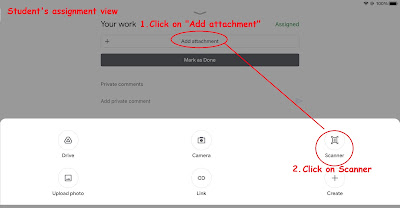
There is a new feature in Google classroom which students can scan their work and submit.


After capturing an image, students can crop the image and add additional pages.


The scanner is better than just using the camera as the students can crop and adjust the image of their handwritten work or drawing. 

When the students save their photos, a PDF is generated and attached to the Google Classroom assignment which can easily be opened by the teacher.

A relief for us as some students submitted work using a few photos and it is a nightmare going through one by one. The image will be clearer too.

My posts on Google Classroom https://ezitnew.blogspot.com/search/label/Google%20classroom?m=1

Feb 24, 2022

Wordle

Recently trending wordle. Try making your own and get your students to try.

https://mywordle.strivemath.com/

Chinese version on Chinese idiom

https://cheeaun.github.io/chengyu-wordle/

Malay version of wordle

https://www.projecteugene.com/katapat.html


NY times wordle

https://www.nytimes.com/games/wordle/index.html

Feb 10, 2022

Using phone camera to capture data for Excel

 Excited to learn this for Excel. 

You can use the phone camera to capture data which is extracted to Excel!

Open the Excel app in your phone and create a new spreadsheet.


Click on the icon with an A and pencil.


Select Insert and Data from picture.


Allow the camera to capture the data. Adjust the frame so that the data you want to extract is within the frame.


You can review the data capture and make amendments if it is not accurate. Love that the image is placed above the spreadsheet for you to check.

With the data extracted, you can highlight on it and insert a chart for representation.


Jan 20, 2022

QRtoon

Richard shared on the use of QRtoon and the many uses of QR codes

https://www.freetech4teachers.com/2022/01/five-uses-for-qr-codes-in-school.html?spref=fb&m=1

Tried out the QRtoon and this is mine. Easy to create on the web version.


I have been using QR codes to get the students to access my Geography blog for the last few years. Giving them the printed QR code on a cat bookmark.

I have also used it in an amazing race style activity for geography in which the QR codes give them clues to proceed to the next station.


My posts on the use of QR codes. Refer to the earliest posted in 2015.

Jan 16, 2022

Me in the past using IT

Shared by Hwee Hwee in SGLDC which sounds so fun! I think this can also be modified for bonding activities or geography with background featuring places which they would like to visit. They can then use where, why, who, what to analyse what make a place a tourist destination

Sec One History

Learning about the past 

1. Go to National archive 

https://www.nas.gov.sg/archivesonline/search

Find a photo: search by school or theme. Eg: national school games

2. Download the photo 

3. Take a photo of ownself. Change it to black and white if the photo from National Archive is black and white.

4. Use remove background app e.g.

https://www.photiu.ai/

https://www.remove.bg/upload

Upload photo of oneself and click edit.

Upload the national archive photo as background.

Download the photo.

5. Post in Padlet the photo you have created and do a

 "See, Think, Wonder"

Example from her post (only viewable by members of SGLDC)

https://www.facebook.com/groups/sglearningdesigners/permalink/1259488011205707/

Photo credit for background from NAS

Brought the student back in time to watch the Chingay 2005, way before he was born!

Definitely a good way to get the students curious about the past. The notion of place and time.

Side note that NAS is very useful and easy to use in searching for old photos.


Dec 20, 2021

SGLDC virtual meet VI

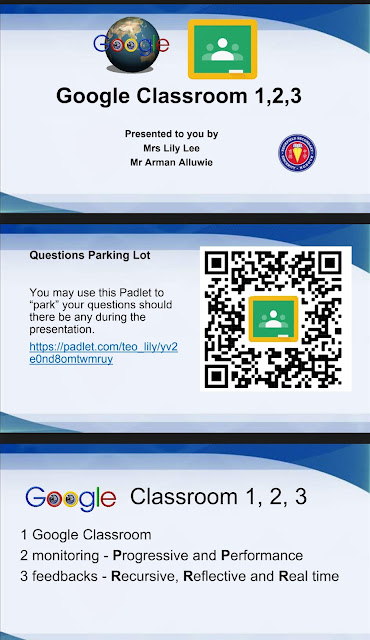
I shared on the use of Google Classroom with Arman for the SGLDC Virtual meet. The link to the slides and video recording of our sharing in SGLDC virtual meet on Google classroom.


Questions and answers plus resource links on pallet.


Nov 3, 2021

DisVoize, whisper tour guide

 The Covid-19 has brought both challenges as well as opportunities. I was checking the whisper tour guide system and it is both expensive and space consuming. Now the technology has evolved and one of the tours I saw on klook is using π˜Ώπ™žπ™¨π™‘π™€π™žπ™―π™š app. What an ingenious way of conducting a tour or learning journey. It integrates a live audio streaming system using smartphone which most of us possess.

How it works:

1. Both Speaker and listeners must install and open up the app on their smartphone. 

2. Speaker will create a name for the channel e.g. lily-geog and share that with the listeners.

3. Listeners plug in a regular set of earphones to their smartphone and click on listen and input the channel name e.g lily-geog

4. The speaker only need a standard microphone like those that come with most earphones. He/she can mute the mic if not speaking.

π˜Ώπ™žπ™¨π™‘π™€π™žπ™―π™š is a digital tool that only requires an internet connection. That means flexibility, reliability no space limitation.

Would really love to hear from you if there are similar ones which are better.  This will definitely help when we are conducting learning journey in the public places and would not want to raise our voices.

Just wondering if there is one with 2 way communication. In case listener would like to ask a question.

Great if bringing the students to a public area and do not want to raise your voice and ensure they can hear you.

First shared on FB SGLDC https://m.facebook.com/groups/sglearningdesigners/permalink/1003974766757034/


Aug 25, 2021

Editing new Google Site on mobile

I used to be able to edit my Classic Google Sites on my mobile. However, I had to convert all my Classic Google Sites to the new format. I just found out how to do it.

1. Click on the 3 dots on the Chrome Browser to access the menu.


2.  Select Desktop site.

3. You can then click on the pencil icon at the bottom right of the page to edit 


Aug 21, 2021

Citing source in Google Doc

 Did you know you can EASILY cite sources without ever leaving Google Docs? Yep! It’s so easy!

Insert Footnote Citation in Google Docs

You can easily add footnote citations by using the Explore tool in Google Docs. 

How to Cite Sources in Google Docs

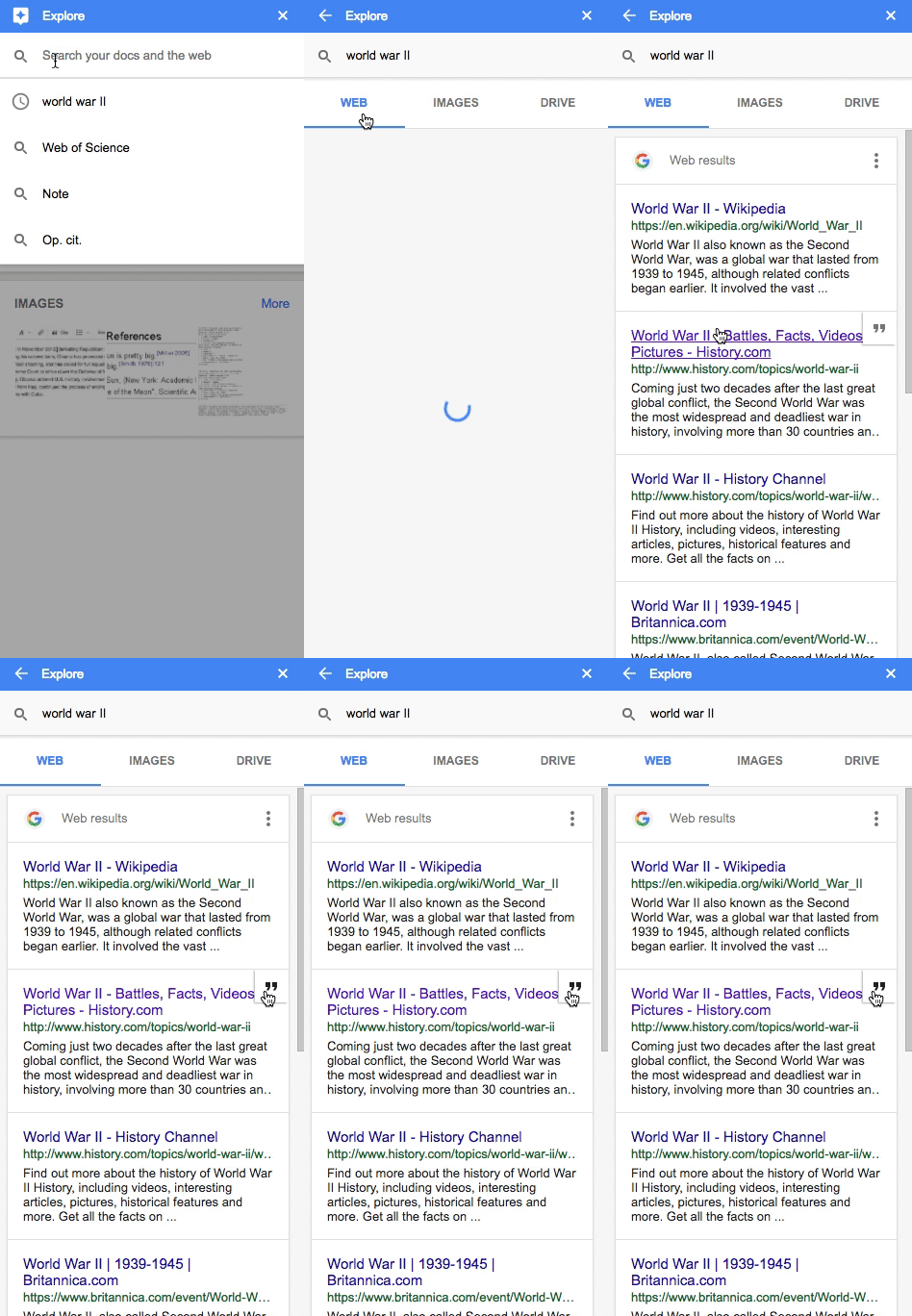
1. Go to Tools>Explore (or click on the explore icon 0n the bottom-right)

2. Type in your search query to find the source

3. Hover over the result, then click on the quotations " in the top right of the result

4. A footnote citation will be added to the bottom of your doc

How to Cite Sources in Google Docs

Change the Citation Format:

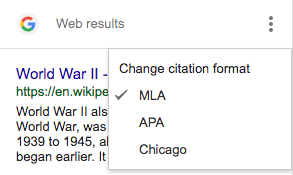
You can cite the source in MLA, APA or Chicago!!!!!

Go to the three dots (snowman) to change from MLA, APA, or Chicago.

How to Cite Sources in Google Docs

 Source: https://shakeuplearning.com/blog/10-google-docs-tips-every-teacher-should-know/

Remote for Slides

Remote for Slides turns your phone into a presentation remote! You can even see the speaker notes on your device. No need to use remote with USB/Bluetooth. You won't lose the little adapter AND you can easily see the buttons to go forward and back to a previous slide.

Features:

  • Control presentation slide (Next/Previous slide)
  • View speaker notes with adjustable font size
  • View timer
  • Control YouTube playback
  • Dark mode & Black Mode
  • Multiple languages support
  •  Add to home screen
  •  Easy to use

1. Install Remote for Slides Chrome Extension from the Chrome Web Store. https://chrome.google.com/webstore/detail/remote-for-slides/pojijacppbhikhkmegdoechbfiiibppi?hl=en

Add the app on your mobile

2. Open your Google Slides in Editor Mode, then click on the “Present with Remote” button.

3. Next, click on the “Start Remote” button to show the 6-digit code.

4. Enter the 6-digit code in the Remote for Slides Progressive Web App (s.limhenry.xyz) or in the Remote for Slides Lite Android App (bit.ly/slides-lite) , and you are ready to go!

On Google Slides


On your device