So excited that I am able to edit the assignment already assigned as well as being able to combine a few of my lessons into a course!
Interesting sharing by Suhaimi in SGLDC:
You can try out Brain Boost Time for in-class breaks which can be used in the middle of a long lesson when transitioning between activities or even at the start of a lesson in the periods after recess. For those of you with HBL still, you can use BBT @ go.gov.sg/etdbbt in your 'live' lessons too by sharing your screen.
https://sites.google.com/moe.edu.sg/brainboost/home
If you do use BBT, do email him with some of your thoughts at suhaimi_zainal_shah@moe.gov.sg or enter your feedback here https://sites.google.com/moe.edu.sg/brainboost/others/feedback
So excited that I managed to find out how to send the email with my interactive poster. I was able to create a poster with hotspot links embedded using image mapping which I had shared in my earlier post http://ezitnew.blogspot.com/2019/07/interactive-poster-image-mapping.html but did not know how to send the interactive poster within the email. I created a hyperlink on the poster and posted them on a blog as I could do so in the html composition.
To my delight I found out today how to embed the interactive poster in the email @ https://www.wikihow.com/Send-HTML-Emails
I just have to right click on the main section of the compose window, then choose 𝗜𝗻𝘀𝗽𝗲𝗰𝘁 from the pop up menu.
Within the source code, I right click on the part I want to edit and click on 𝗘𝗱𝗶𝘁 𝗮𝘀 𝗛𝗧𝗠𝗟 in the pop up menu.
Some samples from 2019 https://efsstel.blogspot.com/?m=1 before I use our intranet which limit the viewers to our school.
SLS R15 list of updates (23 June 2021)is now available from the User Guide https://mo.learning.moe.edu.sg/sls-user.../vle/update.html
Updated 17 June
Jing Er has collated on a Google site on common FAQs, workabouts, etc for the new SLS release.
For some students, hearing a teachers feedback on their work is better than to read your feedback. The inflection of voice, softening the tone of the feedback and or adding a level of encouragement, makes a difference to the feedback given.
Richard Brunei shared three tools which can be added easily as chrome extension: Mote, e-Comments and Kaizena
Mote is a Chrome extension that can be used to record voice notes directly within Gmail, Google Classroom, Google Slides, and Google Documents. One of its many convenient features is that students do not need to have the extension installed in order to listen to your voice notes.
Using Mote in Gmail
Using Mote in Google slides
Using Mote in Google Classroom
Using Mote in Google Doc
E-comments is a Chrome extension that lets you add canned comments to Google Docs, Word documents (when opened in your web browser), Google Classroom, Canvas, Schoology, and just about any page that has a commenting feature. e-Comments provides a huge bank of pre-made comments arranged by grade level and skill. You can also create your own canned comments in e-Comments. Those comments can include your own audio recordings.
Kaizena can be used as a Chrome extension or you can simply go to the website and import documents (Word, PDF, and Google Docs are supported) to add voice comments to them. Similar to e-Comments, audio comments in Kaizena are saved in your account and can be re-used across multiple documents with just a click or two.
Kindly shared by Richard Bryne with Mr Shasi
Definitely benefitting from the sharing in SGLDC and by my colleagues as I used it for my morning meet with my form class, making it more effective.
1. Attendance and temperature taking using Google Form and spreadsheet
Shared by Yong Qin in SGLDC, he had created a Google Form and Google Spreadsheet which simplified the process of taking the attendance and temperature taking.
The form helps to track the following: students who have/have not taken their temperature students who are late students who are not feeling well because they have a fever or because of other reasons.
The form accepts input every day, so there is no need to maintain the form after you have set it up. I
His video demonstrating how the form works and how you can copy the form into your Google drive here
https://www.facebook.com/groups/sglearningdesigners/permalink/1108342616320248/
The links to the files are shown here: https://drive.google.com/drive/folders/1ugB3_EeBlSyCZzHI7FlLtU3ZVB4ETcOJ?usp=sharing
Grateful to him and tried it out. It works!
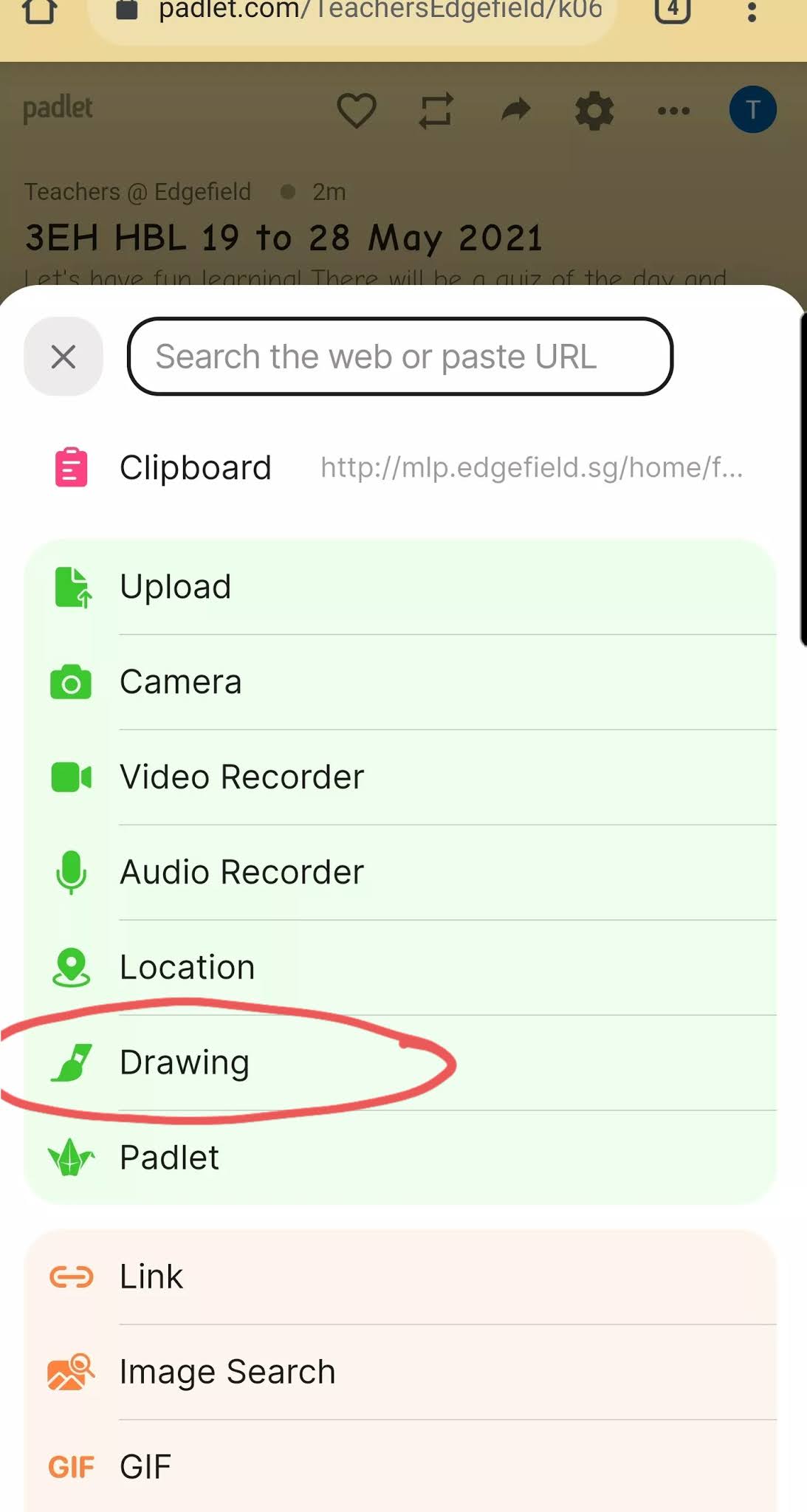
2. Using padlet for bonding activities.
Motivating them to be early with mini challenges between 7.30 to 7.45am as they are supposed to log in at 7.45am. The students could also draw or design quizzes for their classmates.
This was shared by my colleague, Addie, by email that Google Jamboard had been added into the Gsuite family for my school.
Addie also shared on the technological affordance of Google Jamboard.
Technological affordance
Awesome sharing by Lawrence in SGLDC.
New board game based on idea from flippity. He added ability to auto-move so that the game is more pedagogically based on teacher's questions added. You only need to type in your own questions and customize to suit your SLS lesson.
https://ejss-browser-editor.herokuapp.com/
You can try out the one below: https://iwant2study.org/lookangejss/EditableSimulations/ejss_model_Board_Game/
I think it will definitely engage the students with virtual overseas LJ using Google Earth.
Under Culture in Voyager, students can choose to visit the WWI sites and learn more about the events there. Below are screenshots from the Voyager in Google Earth on WWI: Around the Globe. A collaboration with History Channel.