Nov 3, 2021

DisVoize, whisper tour guide

 The Covid-19 has brought both challenges as well as opportunities. I was checking the whisper tour guide system and it is both expensive and space consuming. Now the technology has evolved and one of the tours I saw on klook is using π˜Ώπ™žπ™¨π™‘π™€π™žπ™―π™š app. What an ingenious way of conducting a tour or learning journey. It integrates a live audio streaming system using smartphone which most of us possess.

How it works:

1. Both Speaker and listeners must install and open up the app on their smartphone. 

2. Speaker will create a name for the channel e.g. lily-geog and share that with the listeners.

3. Listeners plug in a regular set of earphones to their smartphone and click on listen and input the channel name e.g lily-geog

4. The speaker only need a standard microphone like those that come with most earphones. He/she can mute the mic if not speaking.

π˜Ώπ™žπ™¨π™‘π™€π™žπ™―π™š is a digital tool that only requires an internet connection. That means flexibility, reliability no space limitation.

Would really love to hear from you if there are similar ones which are better.  This will definitely help when we are conducting learning journey in the public places and would not want to raise our voices.

Just wondering if there is one with 2 way communication. In case listener would like to ask a question.

Great if bringing the students to a public area and do not want to raise your voice and ensure they can hear you.

First shared on FB SGLDC https://m.facebook.com/groups/sglearningdesigners/permalink/1003974766757034/




Aug 25, 2021

Editing new Google Site on mobile

I used to be able to edit my Classic Google Sites on my mobile. However, I had to convert all my Classic Google Sites to the new format. I just found out how to do it.

1. Click on the 3 dots on the Chrome Browser to access the menu.


2.  Select Desktop site.

3. You can then click on the pencil icon at the bottom right of the page to edit 


Aug 21, 2021

Citing source in Google Doc

 Did you know you can EASILY cite sources without ever leaving Google Docs? Yep! It’s so easy!

Insert Footnote Citation in Google Docs

You can easily add footnote citations by using the Explore tool in Google Docs. 

How to Cite Sources in Google Docs

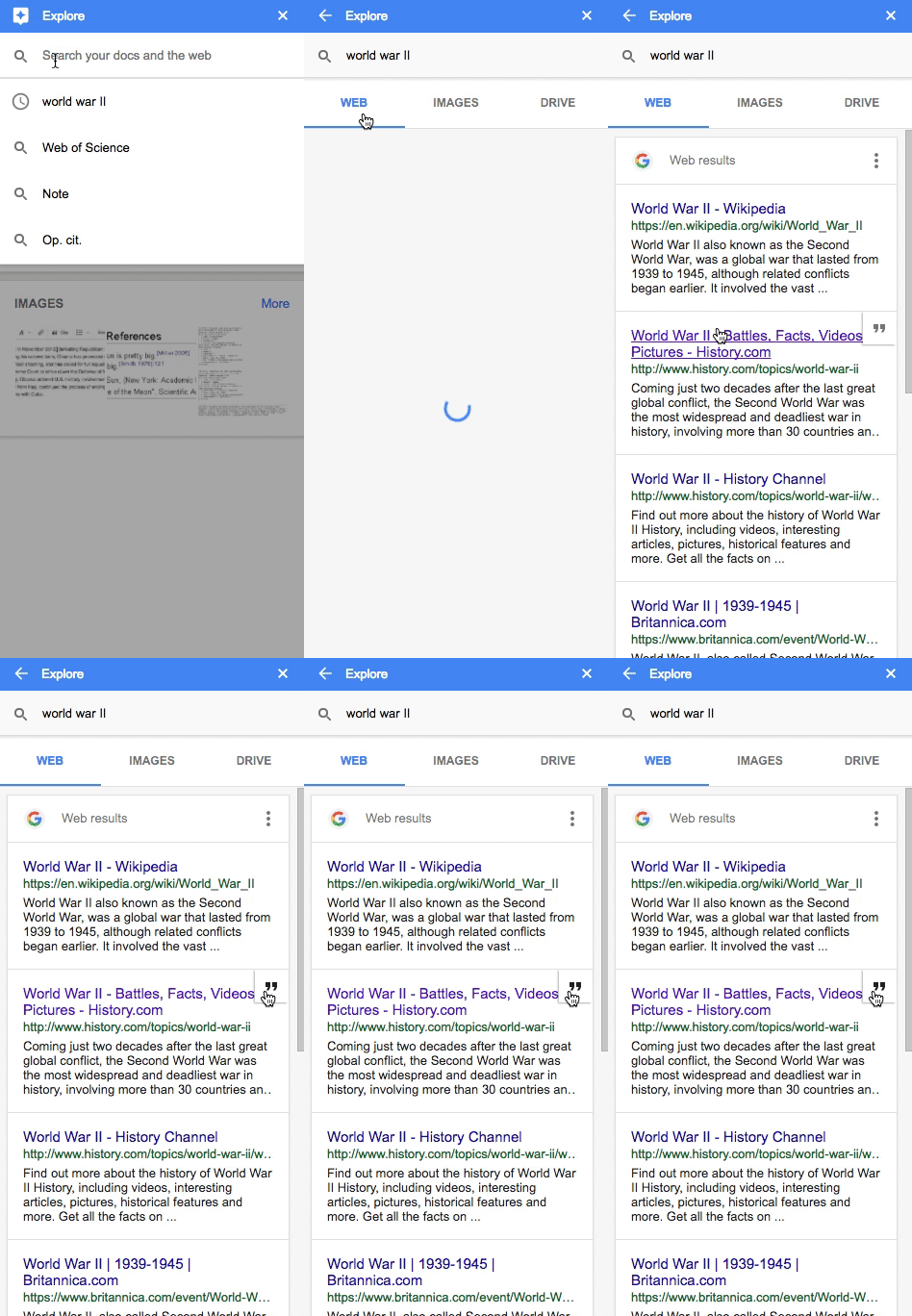
1. Go to Tools>Explore (or click on the explore icon 0n the bottom-right)

2. Type in your search query to find the source

3. Hover over the result, then click on the quotations " in the top right of the result

4. A footnote citation will be added to the bottom of your doc

How to Cite Sources in Google Docs

Change the Citation Format:

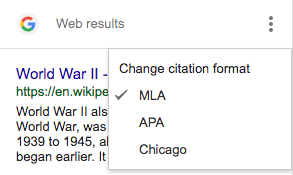
You can cite the source in MLA, APA or Chicago!!!!!

Go to the three dots (snowman) to change from MLA, APA, or Chicago.

How to Cite Sources in Google Docs

 Source: https://shakeuplearning.com/blog/10-google-docs-tips-every-teacher-should-know/

Remote for Slides

Remote for Slides turns your phone into a presentation remote! You can even see the speaker notes on your device. No need to use remote with USB/Bluetooth. You won't lose the little adapter AND you can easily see the buttons to go forward and back to a previous slide.

Features:

  • Control presentation slide (Next/Previous slide)
  • View speaker notes with adjustable font size
  • View timer
  • Control YouTube playback
  • Dark mode & Black Mode
  • Multiple languages support
  •  Add to home screen
  •  Easy to use

1. Install Remote for Slides Chrome Extension from the Chrome Web Store. https://chrome.google.com/webstore/detail/remote-for-slides/pojijacppbhikhkmegdoechbfiiibppi?hl=en

Add the app on your mobile

2. Open your Google Slides in Editor Mode, then click on the “Present with Remote” button.

3. Next, click on the “Start Remote” button to show the 6-digit code.

4. Enter the 6-digit code in the Remote for Slides Progressive Web App (s.limhenry.xyz) or in the Remote for Slides Lite Android App (bit.ly/slides-lite) , and you are ready to go!

On Google Slides


On your device


Jul 24, 2021

Kahoot Groups and Collection

With a shared premium account, you can create groups and collections for greater collaboration in building up the Kahoot resources.

Create groups in the school account.

Invite members to your group and the members can share the quizzes they have created. Remember to duplicate a copy so that it can be added to the collection in the designated folder.


Share the Kahoot quiz you have created in your personal account with the group created in the school account.


Also to note - under the premium account you can assign the quiz to a maximum of 500 participants.

This is great for HBL as you can assign the quiz to the whole level.

http://ezitnew.blogspot.com/2020/04/kahoot-on-hbl.html

Under the premium account, you can also use the type answer option for question type.


Jul 17, 2021

Snip & Sketch

Totally grateful to this tool from Windows 10. 

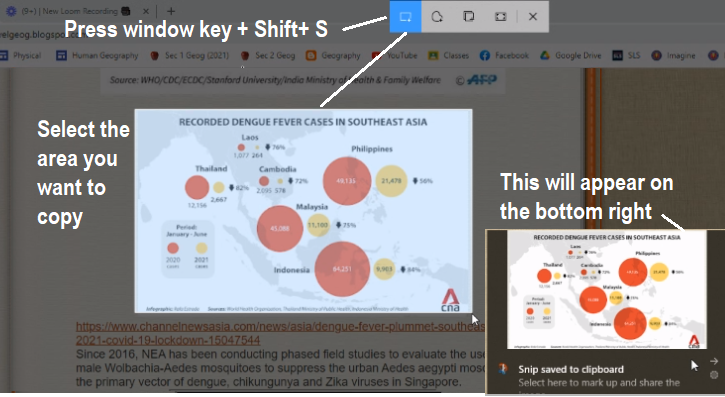
The easiest way to call up Snip & Sketch is with the keyboard shortcut Windows key + Shift + S. 

You can also find the Snip & Sketch tool listed in in the alphabetical list of apps accessed from the Start button as well as in the notification panel where it listed as Screen snip. 

Once you take your screenshot, it will be saved to your clipboard and show up momentarily as a notification in the lower-right corner of your screen. Click the notification to open the screenshot in the Snip & Sketch app to annotate, save or share it. Or you can paste it onto Paint for editing. I have also been able to paste it in WhatsApp web messages directly. 

I like this compared to pressing the printscreen key  (PrtScn) as I could choose the part of the screen to copy.


However, you can set the PrtScn button to open the Snip & Sketch tool by going to Settings > Ease of Access > Keyboard and toggling on Use the PrtScn button to open screen snipping under Print Screen Shortcut. 


Slides to videos

My ICT HOD, Mr Shasi, shared a tool Narakeet which allows the uploading of slides which convert it into a video that is automatically narrated for you. You can choose from about twenty voiceover options, adjust the speed of the voiceover, and choose to have captions automatically added into your video. This was shared to him by Richard which you can see from the videos below.

To use Narakeet you must have your slides in PPTX format. Fortunately, all of the popular slideshow creation tools including Canva, Google Slides, and Keynote let you export your presentations as PPTX files. When you upload your PPTX file to Narakeet your speaker notes are used as the basis for the narration that is created for your video. When your video is completed you can download it as an MP4 file that can be used anywhere that you typically share videos.

https://www.narakeet.com/


From PowerPoint slides:


From Keynotes:


From Google slides:


However, if you just simply want to convert the slides to a video without the auto narration, I have been getting my students to use the screen recording function on PowerPoint Slides which I had shared earlier. My students learned and they were able to create the videos instantly.


I would say it is easier as all SSOE laptop has ppt? 
And if you do not wish to create an account with Narakeet and do not mind your own voice over.


Jun 24, 2021

Sharing from STP - Featuring Deck.Toys

Interesting sharing from STP Vol 6 on how Mr Brendon Chee drew on the Singapore Teaching Practice to facilitate effective home-based learning for his students. 
 
He made use of Deck.Toys for one of his asynchronous lessons to leverage its features to encourage learner engagement, motivate his students to pursue learning at their own pace, and to check for their understanding without adding substantially to their work load. To make learning meaningful and relevant for his students, he incorporated overarching storylines to connect his students’ learning across different topics and design tasks to empower students to own their learning. He designed recall tasks that offer variety and increasing levels of difficulties so that his students would feel motivated to learn as they complete each task.
 
I like his advice on the use of gamification such as Deck.Toys.
Brendon: When using platforms like Deck.Toys, I would advise teachers to begin with a clear set of lesson objectives, and discernwhich lessons are most suitable for gamification. Next, they should select games/tasks that best align with the lesson objectives and decide how elements of gamification can enhance the learning experience.
Extracted from STP Volume 6 pg 4-5
Please see more of my sharing on Deck.Toys which I have curated the links to the many games created by teachers in SGLDC.  http://ezitnew.blogspot.com/2020/02/toy-deck.html


Editing Assignments and Course in SLS

So excited that I am able to edit the assignment already assigned as well as being able to combine a few of my lessons into a course!


Remember to star your lessons which you would like to include in your course in your drive.  Or you can star any of the resources from the MOE library as well.


You are now ready to combine the starred lessons into a course.

Start by clicking Choose to create a course


Add a title, image and course description followed by clicking on save.

Next click on add section.

Click on Choose custom template.

Remember to click Add Existing and select From Stared Resources. Choose the starred lesson to add to your course.


You can choose to include all the activities from the lesson or select only those you want. Remember to click on Choose at the bottom of the page after you have selected the activities.


You can choose to add more sections for different lessons. You can also add more than one lesson to a section.

I also like that you can set a common schedule for all the classes assigned.


You can also make amendments to assignments which you have already assigned to your students 

User guide on above from the SLS team

Another video on creating a course by Harley!


Updated 6 May 2022 in response to comment below. 

1. To rearrange sections in a course plan


Jun 22, 2021

Brain Boost Time

Interesting sharing by Suhaimi in SGLDC:

You can try out Brain Boost Time for in-class breaks which can be used in the middle of a long lesson when transitioning between activities or even at the start of a lesson in the periods after recess. For those of you with HBL still, you can use BBT @ go.gov.sg/etdbbt  in your 'live' lessons too by sharing your screen. 

https://sites.google.com/moe.edu.sg/brainboost/home


If you do use BBT, do email him with some of your thoughts at suhaimi_zainal_shah@moe.gov.sg or enter your feedback here https://sites.google.com/moe.edu.sg/brainboost/others/feedback