Aug 22, 2019

Open classroom - using SLS to teach geographical concepts

Greendale Secondary School open classroom on the topic deforestation. An opportunity for us to see how the teacher uses SLS to blend in assessment for learning and geographical concepts in the teaching of the topic on "impacts of deforestation". Tapping on the embedding function and the use of simple analytics from students' responses, the lesson showcases the use of updated features such as the thinking routine in SLS.

We were given a chance to view a blended lesson 1 of 2 lessons in the sub topic of impacts of deforestation with a class of 40 Sec 1 students.    

The teacher made use of the SLS platform to support the inquiry based learning.  The teacher led the class in looking at the geographical issue with a poll in SLS on what the students think is the most significant impact of deforestation. He proceeded to task each pair to look into an assigned impact with a variety of geographical resources in the form of text extracts, diagrams and videos embedded in SLS i.e. E1 pair to look at impact on biodiversity, E2 pair to look at impact on water catchment and E3 on enhanced greenhouse impact. The students recorded what they had learned from the resources on the impact assigned to them in the SLS thinking routine. The teacher quickly bookmarked a few responses and highlighted some concepts which the students had shown to be lacking in their understanding from the thinking routine responses. e.g. the teachers clarified what is surface run-off and how it can contribute to river flooding. He also made a point to highlight the inter-connectivity of the various impacts. 

Then the students proceed to change their partners at their table to share with the other students on why the impact is more significant than the other (expert group strategy). The lesson ended with a revisit to the question on what they now think is the most significant impact of deforestation and the students responded individually on SLS thinking routine.

The design map of the lesson shared:


Before we proceeded to the classroom to observe the students for the lesson, we were reminded that we would be taking turn to be at the tables to make the observation of students' responses. (20 seated at the tables with the students and 20 seated at the back to observe and then swopped).

We were given the following recording sheets to record our observations:


The sharing ended with a discussion on the planning and enactment considerations in the conduct of the lesson. What we observed in the lesson which thinking was made visible and how students collaborated to make sense of the geographical concepts as well as how formative assessment was weaved into the lessons.


 Our takeaway:


Thoughts on the lesson shared with us-

1. Be willing to give up some control - a true student-centered lesson needs to be led by student actions.

2. Using SLS means students can access learning materials in their own time, at their own pace - they are not limited by their prior knowledge or access to information.

3. Have high(er) expectations of students - they will usually surprise you with what they are capable of.

4. Consider the highest value use of classroom time (e.g. discussion, sense-making) & do that.

5. An SLS lesson can be covered over several F2F sessions - you can release segments over.

6. The definition of what a lesson is can extend beyond classroom time (e.g. pre, post lesson learning) - we may want to explore how we think about lessons and reframe our definition of what constitutes a lesson.

7. The 4 Vs of data - value, volume, velocity, veracity - make managing student inputs increasingly challenging. We will need to evolve new strategies for managing them.

8. One strategy to manage the increased volume & velocity of data might be to consider peer/self-assessment strategies, both online (e.g. have students comment on each others' responses) & F2F (e.g. getting students to clarify with each other).

9. We should use SLS to make our teaching better, not only easier - it should make low-value activities easier (e.g. searching for resources, collating student inputs, distributing feedback) & free time up for us to do more high-value activities (e.g. designing learning experiences, exploring different ways to reach out to different students, crafting feedback). 

10. The learning artefacts (e.g. student responses) of one lesson can be used as teaching materials in subsequent lessons.


SLS is an enabler for better teaching & learning:

1. Rich repository of quality, curriculum aligned resources

2. Promoting visible interaction (student-content, student-student, student-teacher) for learning

3. Opportunity to change the way we deliver learning experiences (e.g. more inquiry, authentic conversations)


Aug 4, 2019

Apple training 2 Aug 2019

I like the ice-breaking activity which our Apple Learning Specialist, carried out using a name card template by keynote. A good way to get to know the other teachers in the group. After editing the name card template - we can airdrop the image to each other and keep the contact.
Good workshop by Apple professional development leader. His activities made me pause and reflect. He made use of the four corner strategy and gotten us to take our stand on the statements made.  Indeed it helped us to look at how different we interpreted the statements. Then he also got us to look at a question on whether a 40 cm pizza which cost 40 zed has more value for money as compared to a 30 cm pizza which cost 30 zed. Rather than using a mathematical approach, many have interpreted value in a different way. The activities allowed me to see how different people express themselves in different ways and how we can approach the same statement/problem in different ways.The activities reminded us that we can set mindful activities to level up creativity and that we can utilise technology effectively for learning. Technology enables the teacher to connect with big group who learn differently.  Technology also enables teachers who are also good in their teaching to put in the structure for cognitive demand – to allow the students to be engaged in a way in which they are able to interact with content.


Break out into our subject group. We were tasked to look at landscape and publishing in our group. Showed the other two teachers how we could uses sketches school which I learned in the last training to do a sketch and annotation. Started with importing the photo, reduce transparency, remove the photo and then annotate. 


The padlet which different groups shared their ideas.

Made with Padlet

Two teachers shared their lessons using Pages and one of them is my colleague.  Very impressed on how his project-based learning allowed the students to reflect and deepen their thoughts as well as expand their creativity. 


Sharing by Geography teacher :


Jul 22, 2019

Hp5 interactives

I must say Hp5 has a lot of interesting interactives. I have just figured out how to embed on my sites, scroll down to this post to see how it's done! 
Look at the list below on the interactive. Have yet to explore all but so promising!


Created an image with hotspots which can open up text, video or another image at the hotspot.
https://h5p.org/node/556368


You can embed it in your site by copying the code..


The interactive image embedded below. Click on the + sign for a link to wiki and another for a video

Jul 21, 2019

Interactive Poster - Image mapping

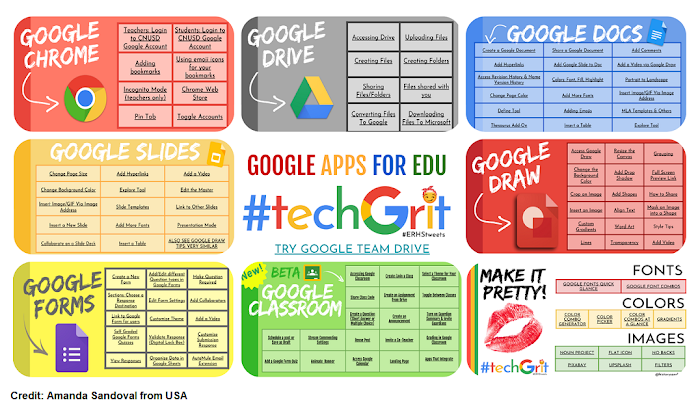
Step 1: upload to your drive or blog the image which you want to add the hotspots to external links.
e.g. the picture below
 https://blogger.googleusercontent.com/img/b/R29vZ2xl/AVvXsEjRgTpoiIigjPAMg_SD5ov6mVo3PfIj4ctaAPeFP988sf_kZWMsU9sagjEdi_Yc9x_1b_vqartk-NO2JeEoI6Q-Z8SvMLmx9YgnWlZT4QDRF4wCiN0_CkbIgCPwZ975FhTcdCElacnbuz4/s700/google+suite+guide.png
Step 2:  Goto http://www.isdntek.com/tagbot/imap.htm


Step 3: After you paste the html code in your site, it will appear as the interactive poster shown below.
  Google Chrome Google Drive Google Doc Google Slides Google Forms Styling Tips Google Draw Google Team Drive Google Classroom  
To open the links in new tabs - I have changed the code by adding target="_blank"

Jul 20, 2019

Collaboration using Google Classroom

Shared by Amanda  Sandoval in "Teacher s using Google Suite" FB group on how collaboration can be made possible using Google Classroom.
https://docs.google.com/presentation/d/1N0hoVP4-4Ri0UhnNBRSRbVp-qsLeMSU-7lWTpYDEjXE

More tips using  Google Classroom
https://docs.google.com/presentation/d/1PIWcLoecqu1sKxQaqF46Izrs9088b9qr0rkSzibmKB0/edit?usp=drivesdk

A good write-up by Lah Jurca on how you can assign work to group and reuse the post in assignment and assign task to another group (copy)
https://techittothenextlevel.blogspot.com/2018/01/managing-group-assignments-in-google.html?m=1

Another sharing by John on how to assign group work in Google Classroom.

Jul 10, 2019

Google slide with Edpuzzle

Shared by Mark Holmes in “Teachers using Google suite for education” group. I like the animation used in this for simple machine. Useful for D&T or Physics?
Google Slide with EdPuzzle links. https://docs.google.com/presentation/d/1aIMObTuNYlcw4ZCYTE35FcKyd3PqFZMJXwxwOP9A6G8/edit?usp=drivesdk


Thinking routine in SLS

Simply love the new thinking routine function in SLS (introduced in April). It really helps to make the thinking process more visible. 

Adding the thinking routine is easy as shown below.


You can also use it for the students to work on  categorisation or as a virtual gallery for their peers to look and comment on. One of the teachers shared on how he used it as an exit pass - 3, 2, 1 reflection. The tool is also great in encouraging active learning. 

There are various templates such as see-think-wonder in thinking routine. You can make use of the thinking routine templates or customize one.


You can read more on thinking routine here:  http://www.visiblethinkingpz.org/VisibleThinking_html_files/VisibleThinking1.html


You can choose to hide the students' names when showing to the class in live mode. You can also bookmark some of the responses to be viewed on top (click on the flag on the top right hand corner of the comment)


As shown by the video below, you can get the students to respond by drawing a picture or label a diagram in thinking routine. One of the Maths teacher shared how she gotten the students to draw the shapes of objects they have observed under the 3 categories (3-columns).


Kindly shared by Chia Wenn Teck from SGLDC
(Updated Sept 2019)
You can download all the responses under Monitor Lesson.  After you click on download all responses, a notification will be sent to you and you can download the csv file from the notification.


If you would like to save individual responses, you can right click on the students name in monitor lesson and then select print in the pop-up menu. You can then save it in pdf format in print.


A video from ETD on thinking routine in SLS

SLS community library

Pretty excited with the ability to share in SLS community library. The sharing in SGLDC was good and many of us actually requested the sharing of some lessons. Grateful that the ETO heard us and introduced this new feature. The sharing will definitely help the comunity grow.

There is a e-catalogue for the lessons shared on SLS community library classified by levels and subjects.
https://docs.google.com/spreadsheets/d/1xSxRqqfgfqIzxBRTH4YanQmrx0seS-B3ItULQ3x0si8/edit?usp=drivesdk

 You can access the respective lessons by the links in the spreadsheet. Sign in by icon email address.

Help the community grow by gifting a lesson -

You can search for a relevant lesson in the community library. The following shared by Chia Wenn Teck in SGLDC.


You can then make a copy and assign them to your students.


Jul 5, 2019

N3 ICT Flippity and Linoit with SLS sharing

Attended a sharing @ N3 ICT symposium by Charles Lee on the use of flippity in engaging students in D&T lesson. He has used in particular the one on scavenger hunt - unlocking the locks by the answering the questions correctly just like the mini escape room. He has shared how intrigued his students were in this activity and were able to learn at their own pace.

I have shared on flippity earlier this year- http://ezitnew.blogspot.com/2019/03/flippity-with-google-spreadsheet.html

Really good to see it in real classroom application.

Just like what Charles mentioned - it takes a great effort in lesson design but is most satisfying seeing how engaged the students are.


I tried embedding it in SLS but couldn't - I hope that we will be allowed to embed Flippity to in SLS as the ability to embed in newly introduced last month.Then there is no need to open up the link in a new window. Sane for limit. It's still useful if you want to show categories.

The other tool he shared was linoit. I have used it mainly for comments or to get groups to do a quick record of their findings either by text, picture or even capture a short video of their work.
http://ezitnew.blogspot.com/2011/09/creating-sticky-note-and-embed-in-your.html 
I like how he used it to get the students to do categorization and be critical in their choice. I would think that thinking routine 3 columns can perform the same task. However I have tried it in my lesson and its great in allowing for movement of the idea that is in the wrong category.

Slides from the N3 ICT sympsium
http://n3ict.weebly.com/symposium-slides-2019.html


Simply love thinking routine. He had also used it in the form of exit pass at the end of the lesson. For me I had been using it more as a form of critical thinking on a stimulus - see, think and wonder.