May 7, 2020

Interactive Google slides

Chanced upon this Google slides tutorial.

Love the following:
1. Picking the colour and duplicating it from a chrome extension Colorzilla
https://chrome.google.com/webstore/detail/colorzilla/bhlhnicpbhignbdhedgjhgdocnmhomnp?hl=en

2. Remove the background of a picture
https://www.remove.bg/

3. A resource of GIF images
https://giphy.com/

4. Bitmoji
https://chrome.google.com/webstore/detail/bitmoji/bfgdeiadkckfbkeigkoncpdieiiefpig?hl=en

Google slip in slide

Thanks to DL Fedder for allowing me to share the awesome post below.
Slip-in-Slide allows you to make slide shows your go-to tool for presenting information to students in Google Classroom because you can "SLIP" a slide into presentations AFTER you've made a copy for each student! What a great way to share weekly assignments, daily journal posts, or even for those times when you forget to add something!
The talk and comment extension sounds amazing.
Her sharing @
https://sites.google.com/view/dlfedder


May 2, 2020

Virtual learning journey

The video below is a 360 video of the Chinatown LJ for Tourism GI 2020. You can also move horizontally through the 360 video by dragging your finger across the screen if you are using your handphone. You may also pause the video and swipe on the screen for the 360 view. Though you cannot experience the smell, the sight and sound would be an amazing VR experience.


You can watch it in VR if you open up the video in YouTube. Experience the virtual reality with VR glasses. Virtual Tourism GI


More of 2020 tourism GI here 


Did a virtual Coastal GI in UK too using Google Earth. An overseas virtual learning journey!
Gotten the students to make observation using street view as well using the ruler in Google Earth to do measurements. I actually gotten the students to 'fly' back to Singapore to compare the size of the one we have at ECP with that in UK. Gotten them to think why are the breakwaters wider in UK.
Google Earth Kmz file and worksheet I have created can be downloaded from my Google site@

Sec 1 virtual Water GI using Google Earth. Let's fly over to Lorong Halus!
Students learn more about the history of the place.
https://sites.google.com/a/moe.edu.sg/sec-1-geog/geographical-investigation/5-lorong-halus-wetlands

They can also see how the place was in the past using the time slider with Google Earth.
https://sites.google.com/a/moe.edu.sg/sec-1-geog/google-earth

Then visit the various location via the street view on Google Earth.


For sec 2 we actually gotten the students to annotate a picture of their neighbourhood to show why it is a unique place for them. Some were not able to be there so they made use of Google Earth and screenshot the street view. They drag the pegman to the spot where there is blue line to see the area in street view.


Updated  5 June- Alex shared on the following 360 video of the Toa Payoh Neighbourhood.


This also reminded me of the sharing on using VR for Housing GI shared by Hua Yi sec
http://geogshare.blogspot.com/2019/11/vr-in-geography.html

Updated Aug 2020: Use of VR by Ms Yong from Teck Whye Sec
https://www.schoolbag.edu.sg/story/first-person-real-issues-virtual-classroom

Do also look at my earlier post on the use of MOE arcgis resources.
http://geogshare.blogspot.com/2020/03/arcgis-resources.html

I have always love Google Earth - My earlier posts on the use of Google Earth:
http://ezitnew.blogspot.com/search/label/Google%20Earth

The use of Google Earth definitely encourage real world exploration. It enables the students to overcome the constraints of space and time, bringing the world into the classroom. Google Earth allows students to locate and explore different parts of the world and the time slider allow one to compare the before-and-after images of an area.   This can definitely help to spark curiosity about the causes and impacts of change as what I have mentioned earlier about the Sec 1's study of Lorong Halus.  

In instances where the location of a study is difficult to reach, teachers can take students on virtual tours. Virtual tours may be in the form of the drag and drop Pegman icon on Google Street View's 3D view. The students could take a virtual trip to see why Machu Picchu in Peru attracts the tourists by moving around the ruins left by the Inca civilisation as well as experience the amazing view from the mountain top. 

Students can zoom, pan, and rotate the orientations of their screen in Google Earth to help them understand geographical space, place, and scale. As mentioned above, the students can use the search and zoom functions on Google Earth to explore Lorong Halus. The ability to observe features in Google Earth by manipulating the map scale actively and easily allows students to have a better sense of how the waterway, e.g Punggol waterway, are connected at a locale and even factors that may affect the water quality in the waterway. 

My Sec 3 students have also enjoyed measuring the breakwater in UK and compare that to the one at ECP using the ruler function in Google Earth. In doing so they could better understand the geographical concept of scale as well as making observations on the reasons for the difference in sizes.  Spatial analysis could be carried out and exploration of the real world without them actually being there with virtual field trips!

I have created a Virtual Coastal GI using Google Earth and simulations in school.
You can read more here:


Apr 16, 2020

Kahoot for HBL

One of my Sec 1 suddenly asked "Teacher can we play Kahoot?" Then the rest also said "Yes teacher please... " during my Google meet with them.
I have been using Kahoot in class and the students love it. Did not occur to me to use Kahoot during HBL.
Then I asked "how are you going to see the questions on my screen and input your answer on kahoot.it as you only have one device?" My school is on the 1:1 Personal learning device so all of them have an iPad. Got the best answer and solution from him - "Teacher, spilt screen!"

Oh my goodness, why didn't I think of that.  Ok will look into that next week. Timely as my colleague sent an email we will be doing a bonding using Kahoot in our CCE lesson next week!

Think we are so stressed preparing for HBL we forgot to bring out the joy of learning.

Instructions on how to split screen on iPad:


My post on the use of Kahoot:
https://ezitnew.blogspot.com/2015/01/kahoot-online-quiz.html

Good to share as earlier this year I received a message from one of the teachers saying that the links did not work. Thanks to the alert I logged in and saw that kahoot updated all the links. I quickly updated the links as I was about to use them the following week. That's why I love to share cos I learn too!

A teacher emailed to me whether she can use the kahoots and quizlets I have created. Thankful that she asked but actually anyone can use. We are all part of the teaching fraternity and what's better than growing together. I learn from all in the sharing too.

I shared on the use of Kahoot as assignment in an earlier post.
http://ezitnew.blogspot.com/2018/04/kahoot-challenge-as-homework.html?m=1
Think I might use that cos I gotten some students to try and they said this seemed better. This will also resolve the need for two screens. You can set the ending time for the challenge. Like the one below I have set it to end this Sunday.
Try it. But max of 100 players.

.    
         .  


Just learned the following from teachers who have commented on the above posts that quite a number had already been using it in the HBL.

One notable sharing from Joel Tan was that he has gotten his students to submit questions on a Google form. He then uses the questions for the kahoot class game. 10 kids shared per session so that will be 4 sessions. He also mentioned they laughed so much cause they learn so much about each other.
Ingenious! Great collaboration and bonding with his class. That's what we should be encouraging. The joy of learning.


Thanks to Low Si Hoon for sharing this link

https://kahoot.com/blog/2020/02/27/kahoot-free-access-schools-higher-education-coronavirus/

Free upgrade to 2000 players for the challenge.
That's why I love to share. I learn too!

Tried the challenge today
In the kahoot challenge  mode, the questions which provided a chllenge to most students can be seen at a glance. The downside is I cannot address that and clarify on the spot. Will do so in the next lesson


I can download the csv file to analyse the results of the students. One downside is I could kick out student who do not provide proper name when played as a class . Can't see their names until the challenge is over.

Would just like to add this feature from the Kahoot challenge. It actually asked me to try again after two days! Will be good to ensure that what is learned is not forgotten!

Apr 12, 2020

SLS Question type and interactive thinking tool

Amazing sharing by Nur Huda Ismail in SGLDC FB group. All the question type in SLS and the interactive thinking tool.
   
Question types in SLS

Short tutorial by Nur Huda Ismail on various types of qn on SLS. 

1. How it looks like for students as well as how it appears on monitoring page when teacher receive their responses. 
2. Difference between poll and MCQ
3. Difference between questions and quiz
4. different types of quiz and how to "mark" or give feedback for quiz.


Interactive Thinking tool.

Short tutorial on Interactive Thinking Tool by Nur Huda Ismail: 

1.Teachers can choose template on SLS by Thinking Routine, or teachers can insert own questions. 

2. Teachers can embed an image on question for ITT. 

3.Teachers can uncheck on “Allow students to view names”. With this setting, students do not know who wrote what. Sometimes students are embarrassed if their response is wrong. When a teacher uncheck on “Allow students to view names”, it gives students confidence to share their response. With this setting, teachers can still view students’ name on “monitoring page”. 

 4.Students and teachers able to view classmates’ response. 

 5.Students and teachers can comment on classmates’ response. 


Apr 11, 2020

Google suite

Shared by Mary Reeves Howard in Teachers using Google suite FB group. Doing something fun with the kids for HBL.

Kind permission from Mary to share here


You can use the spinner from
https://wheelofnames.com/

Apr 10, 2020

My thoughts on HBL

Made an appeal on SGLDC to go easy with Home-based Learning (HBL).

My principal has emailed to remind all of us to practice self-care and to make sure that we don’t burn out over this period. If school resumes from 5 May, there will still be the catching up of curriculum to do. We need to be able to sustain ourselves for the longer term ahead.

Posting this as I was sharing with another Geography teacher, Shups Lim,  how I alternate between SLS and Google Meet for HBL. After the SLS lesson in one lesson, I will address any misconceptions or AFI when I Google meet them next lesson. I alternate SLS and Google meet (teaching and clarifying) so that they are not overwhelmed. I will also present my screen showing the SLS lesson under monitor and address some of the concerns ( misconceptions, not relevant to the Geog issues, lack of explanation or details).

 SLS can be "live" too using the interactive thinking tool. No need to Google Meet every lesson. I think we have to go easy with HBL. No need to force all learning within one lesson. The HBL can stretch over the following lessons if needed. HBL is a unique experience and we must be mindful that HBL is not just e-learning. Focus on how learning is delivered and not completing all the teaching over the e-platforms.

My plan is of course not perfect. I failed in some areas too. But I learn and modify. Ha ha I must say I learn more than ever. Just look at the tons of resources created in the last few days plus the physical setup at home for HBL

If all fail, I still have all my Google sites which I have took pain to set up in the past few years as well as my Geography blog (olevelgeog.blogspot.com) which I updated current geographical issues.

Geography E-lessons on Google Sites


Thanks to all the teachers for sharing on the community library in SLS. I have also been modifying some lessons on community library and sharing. I have shared one on interpreting geographical data on tectonic hazards https://vle.learning.moe.edu.sg/community-gallery/lesson/view/a9387062-5ff7-4039-8a21-9de905e6f5b8 

 I have modified and submitted another lesson on climograph. I think it is not approved yet. I have modified it from a lesson submitted by former colleague who had used my explanation on my blog how to create climograph using excel. I have changed that to using Google sheet as I feel that it is more readily accessible by the students compared to excel. To prepare them for future readiness on learning how to create a combo chart using Google sheet.

 My write-up here on my blog. How to create scatter graphs, combo charts and beach profile as well. http://ezitnew.blogspot.com/2019/04/google-sheets-to-generate-graphs.html?m=1

Apr 8, 2020

My HBL Diary

Adapting what an American educator did ( https://www.mylockdowndiary.com/), I gave my students a template for a HBL diary which they can color and write on it everyday. Different themes for different day.

As I have made a copy for each using Google classroom, they could color or write on it with Google Classroom app as they are using iPAD. They can save their work and go back to do the add on every day. https://drive.google.com/file/d/1B-ESfGOaenKaKlQJydlA_JQqyhbIhj-r/view?usp=drivesdk

Gotten them to color the first page and told them in years to come they will have this diary to serve as something to remember as part of this home based learning. As mentioned this is adapted from something shared in America which they termed my lockdown diary and I changed it to my HBL diary. In case they are bored or stressed by having to stay in for HBL.
  

Jinger shared on how to prepopulate the image for annotation. https://m.facebook.com/groups/214056932415492?view=permalink&id=816734408814405 
You can screenshot my adaptation above and then get them to work on one page (one image) a day. Think the little ones would like that. And as Natalie (in SGLDC) shared she believes that students should be given a chance to talk about their experience.

Also appreciates the SEL resources by brain pop ( register an account with them as it's free for educator cos of COVID) I think the social emotional needs of the children must also be taking care of with them not being physically present in school.

I played one of the videos in class. Now I wonder how to show them as for Google meet they can hear me but not the sound of the video on my screen. They can't access the video on their own as they need educator account.

Stress

Mindful


Apr 4, 2020

Flippity with Google spreadsheet

You can now embed Flippity in SLS!
Click on the link below to the guide how you can embed websites, including Flippty interactives, into SLS. 

https://mo.learning.moe.edu.sg/UserGuide/Vle/teacher/lessons/embed-external-sites-whitelist.html
SLS login required

Simply amazing how easy you can can create cool stuff such as scavenger hunt (unlock each lock by answering a question), crossword, hangman, wordsearch, with the ready made Google Sheet templates. 
Have fun exploring!
http://flippity.net

Try the scavenger hunt - unlock all the locks by answering all the questions correctly! It is similar to a digital escape room and making it is so simple.

Just go to flippity.net and make a copy of the template. Follow the instructions esp on publishing it to the web before it can work. After you have edited the questions, hints and answers as well as publish it to the web, the link to flippity will be shown on the 3rd worksheet 'Get your link here'. I have tried out one on tourism for my sec 3 class - https://www.flippity.net/sh.asp?k=1UhpIMwOH-v0PNbC00OfGmIndlopTGDOsdYhJJIQZ-CQ
You can add image by inserting [[Image:imageurl]] in the question.
Or youtube video by inserting [[youtubevideourl]] in the question.

Another one which I have created - Guess the words from the picture - https://www.flippity.net/sh.php?k=1DcJDgHNyEoupOIR21mVhIkYKuAGQ7Yl0JuS8e7_3Mq4


Zoe Chai shared this in SGLDC - she used the scavenger hunt to create a mini escape room for Biology (Digestion). She embedded the link in SLS and submitted it to the community library called 'A Day in the Gastrointestinal Clinic'. Glad that her students love it. She has set the locks to be in sequential order so they cannot proceed without unlocking the previous lock. It enables her storyline to flow more smoothly.
Really love her creation. That's what I love about sharing - I learn too. Did not cross my mind to create it with a story!
You can also access it here directly: https://www.flippity.net/sh.php?k=1xOItPkzqegx5bXCBdGetCSprsGoLOsMnkYHqMvG3ijU


You can click on the second tab in the Google sheet to allow the results to be emailed to you too!

Students sometimes have problem understanding political symbols in SS or history. A fun way to learn will be using the matching game. Just realised we can do that using the Flippity.net matching game extension. I have done up a simple one My Political Symbols Matching Game on Flippity https://www.flippity.net/mg.asp?k=11PHirkRkxJT997CLYihdVeQuqPdT73Q7CJtjNP93FHM

Using the spreadsheet https://docs.google.com/spreadsheets/d/11PHirkRkxJT997CLYihdVeQuqPdT73Q7CJtjNP93FHM/edit?usp=sharing Just edit the meaning and picture link on sheet 1 and the link for Flipping will be generated on sheet 3 on the spreadsheet. Remember to click on File and Publish on to the Web before it can work.


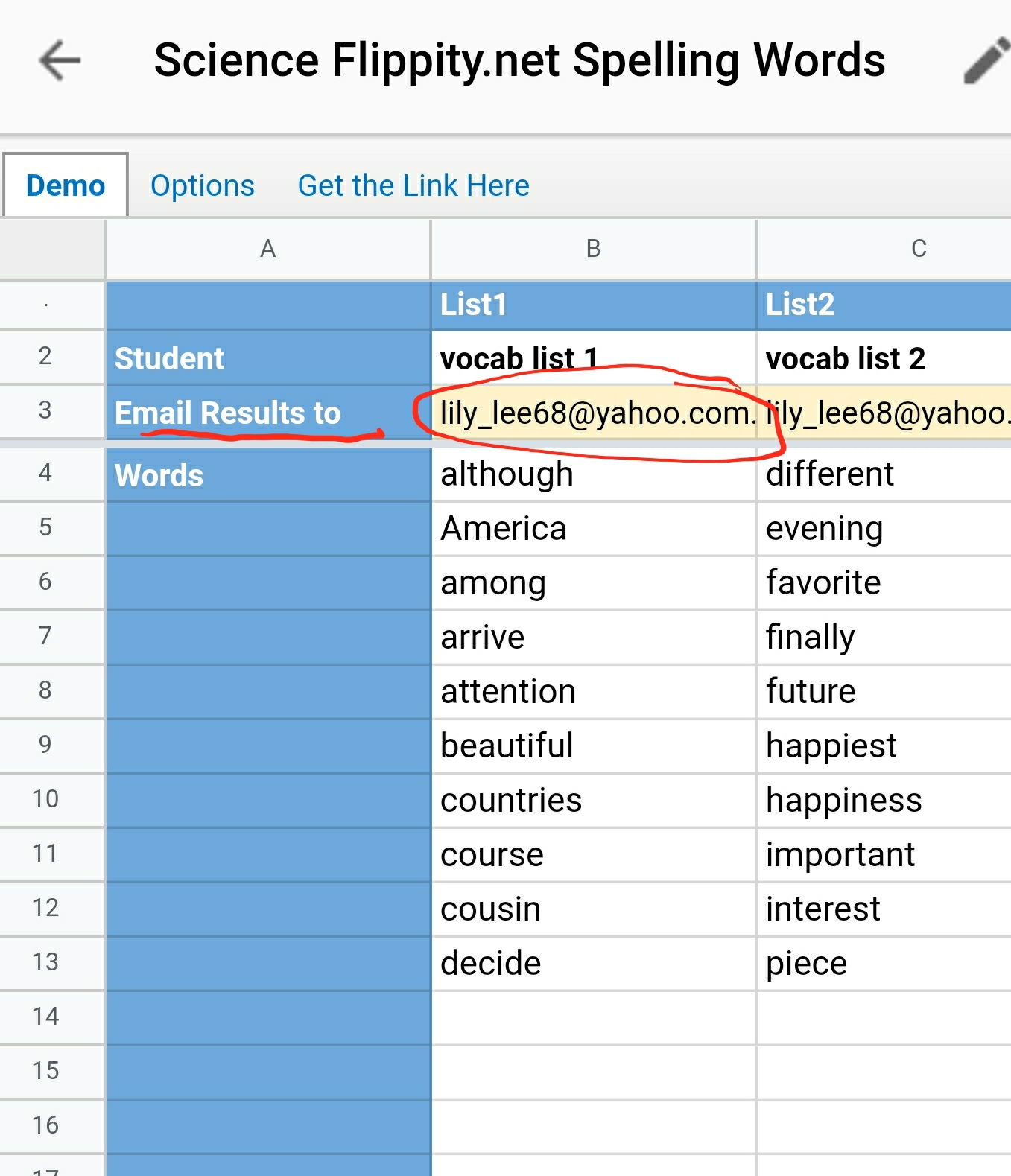
Flippity Spelling word can help the students to practice on spelling. After the list is generated using the template, the students can practice listening to the words articulated and spell it out. This is the spelling list on vocabulary -

You must really try this as it's super easy as practice and quiz are auto generated as well as some games e.g matching game, snowman, word scramble and words watch. Make a copy of the Google spreadsheet which you can edit the spelling list. Remember to publish the file (on desktop) and then get the link on the 3rd tab. The second tab has the option of choosing other language such as UK Eng, French or German. The quiz results can be emailed to you by adding your email address. Remember to edit the email or I will receive the results from your students. 😅 https://docs.google.com/spreadsheets/d/1bdxQNHVw80-PoiB_JQwFAzU3xATY11N2lInY0hojWyA/edit?usp=sharing 

And you can embed flippity in SLS. This make it easy for the young ones to access. 


Add in your email so that the quiz results can be sent to you.


One downside is that the results emailed does not have the name of students. Audrey Ang made a good suggestion to change the title of the list to the name of the student's


The list words can be generated into word search, word scramble etc - just click on More on the top menu
Matching game from the spelling list

 Snow man 
 Word Scramble

Word search


You can use the random name picker to help form teams other than the options of spinner, single name or line up.
Just go to flippity.net and make a copy of the template. Follow the instructions esp on publishing it to the web before it can work. After you have edited the names and publish it to the web, the link to flippity will be shown on the 2nd worksheet.


It supports Chinese characters too.


Updated board game by Harley 6 Mar 2021
Harley have created a board game for P5 Chapter 7 to help pupils to revise vocabulary.  

How to play: 
1. Each pupil to roll a dice and pick a card. (Blue and green cards are vocabulary taken from 生活看板 and 我爱阅读, so that it’s easier for pupils to find from the textbook). 
If they answer correctly, they will get another chance to roll the dice. Pupils can click on the tick to check the answer. 

2. If they happen to land on the number boxes, they can move forward based on the number in the box.


Updated June 2021
Kindly shared by Kate Cheng in SGLDC

Office Lens

Introduced by Tsering Wanyal, you can use Office Lens app on your handphone to digitise your worksheets quickly for HBL. Watch the quick video tutorial below.

This is very useful. Faster than uploading to Google drive and opening the image with Google doc which convert it to editable text (OCR). This app is faster and easier as after taking the picture you have the option of saving it as JPEG, PDF, Word or even PPT. I tried one and the words were very accurately converted in the word document.


It's simple. Just download it from the app store open up the app, take a picture. It supports multiple pages so it will prompt you whether you want to take a second image by clicking next or click on done.

It will be saved in the drive.


I opened up the Word document and the text is editable.