Apr 1, 2022

Wheelofnames

 I have been using the name picker from classtools and I am so happy to learn this as Wheelofnames.com can do so much more!

You can insert pictures, customise the wheel, save and also share it!

Instead of entering a list of names, select add image. You will be prompted to browse your folders for the images you want to attach in the wheel. You can attach pictures of people instead of name to be selected. Or you can use it as a roulette in which a person or object is selected and the students have to provide some information on it. I see a lot of opportunities to engage the students using this.


You can customise the wheel such as changing the pop-up message.

You can change the colour theme and the image to be displayed in the centre of the wheel.


You can share the link and the person can make a copy.


The above link to my conure wheelofnames:

https://wheelofnames.com/stp-9wf

Updated with contributions from SGLDC members

Siew Ting used the name picker as a way to practise multiplication factual fluency with her class.


Mar 13, 2022

FilmoraGo video editor

I was very impressed with Clive Foo sharing of the video in SLS. 

https://www.facebook.com/groups/sglearningdesigners/permalink/1294610207693487/

He had used AR emoji (memoji in his iPhone and AR emoji camera for my Android) to create the emoji animation which you can see at the bottom right corner. Upon checking with him, I found out that he had used Wondershare Filmora to integrate the emoji into video using green screen to remove the background.  


I managed to find a video editor FilmoraGo which has a picture in picture function too.

After I have clicked on new project, I added the main video.

After that I selected the PIP (picture in picture) icon.

I added the AR emoji which I have recorded earlier 

You can move it to the bottom right corner and adjust the size. 


I used the circle mask to blend the emoji into the video. 

I wanted to use the Chroma matting to remove the background (I have selected green background in my AR emoji recording). Just drag the centre point in the circle to the color to be removed. It worked on dashboard but when I tried to export and save, the emoji was not clear. The circle mask worked better.

You can select animation to insert the various transition effects.

The free version has a watermark. You have to subscribe to the Pro version if you want it removed.


Mar 10, 2022

Image slider

Sharing this again as I love this image slider which can show the before and after image by dragging the slider. Definitely great in getting the students to observe the changes of the environment overtime.

I screenshot the image of the area using Google Earth. You just need to click on the year at the bottom left corner to bring up the time slider. I then capture the image in 2010 and another from 2020. Both are uploaded to my blog (you can upload to your drive too)

Using https://juxtapose.knightlab.com/ you can just input the two image URL and the image slider is created.

You can then give the URL of the slider to your students or copy the HTML code and embed it.

Extremely useful in Geography as the students observe the changes in the environment using images.

https://cdn.knightlab.com/libs/juxtapose/latest/embed/index.html?uid=1f1a08da-a069-11ec-b5bb-6595d9b17862

Image screenshot from Google Earth for 2010 below

Image screenshot from Google Earth 2020 below


Image screenshot from Google Earth 2010 compared with 2020 image using image slider below. The students can compare the differences showing the development of the area.

Mar 8, 2022

Feedback using ITT in SLS

I like the Interactive Thinking Tool in SLS as it provides an opportunity for me to see the work of the students at one glance and to address any learning gap immediately. As I provide the feedback to the students from the ITT class view, I feel that the feedback was more effective as the students could view their peers' works and take note of areas they can improve on. 


I projected the class view from SLS and highlighted weak and stronger exemplars of the students' work. From the activity they could better unpack the criteria of drawing to illustrate the formation of a geographical feature as they compare their diagrams with that of their peers. I gotten them to tell me which is a better diagram illustrating the formation of bay and headland and eventually I concluded by highlighting them on the whiteboard the essential components needed to present a diagram to illustrate a geographical concept.

Grateful to learn that from 'Designing quality assessment feedback practices in schools' by Rachel Goh. "Feedback as practice moves from the act of the teacher telling the students all their mistakes, towards the co-construction of knowledge through acts of showing and concluding."


The ones which I added in red are some of the comments the students were able to pick up  in class. "The key to effective feedback is making students want and be good enough to fix their gap."  By looking at the weak and stronger exemplars from their peer, it will help to motivate them and work on the feedback to better their performance. They could better understand the success criteria needed to produce a better piece of work. 

Setting routine and varying tasks in Google Classroom

I have been using the RISE framework to give instructions in Google classroom to set up the routine. 
Resources
Instructions
Submission
Extension of Learning

By setting up the routine in Google Classroom, the students are clearer on what to expect and are better engaged. They are also more self-directed and motivated to extend their learning beyond the textbook.

I did a quick survey using Google Form at the start of the term to find out more about what the students already knew about the subject and how they would like to learn. I had then acted on it and created a variety of tasks - reflection on current geographical issues, response to a video, interactive game, written response to structural questions, interpreting diagrams, mind mapping, Kahoot etc


Students are more engaged and see the relevance and authenticity of their learning. 

At the end of the chapter, I would get them to fill in another form which they self-evaluate on whether they have fulfilled the learning objectives as well as giving me feedback whether the strategies I used are effective for their learning. It also helped me to identify learning gaps and I would address them during revision as well as better plan for the next topic. 

Through the self evaluation, the students are also more critical of their learning and would be more motivated to close their own learning gaps. The ability to assess their own learning also motivate them to move forward upon knowing they are able to achieve the learning objectives.

Each of them will also get a certificate emailed upon completion as I have added them using the certify'em extension in Google form.
You can read more about the use here
http://ezitnew.blogspot.com/2019/03/google-form-add-on.html


Feb 27, 2022

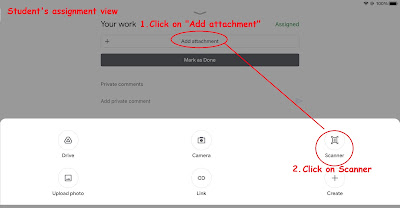
Scanner on Google classroom

There is a new feature in Google classroom which students can scan their work and submit.


After capturing an image, students can crop the image and add additional pages.


The scanner is better than just using the camera as the students can crop and adjust the image of their handwritten work or drawing. 

When the students save their photos, a PDF is generated and attached to the Google Classroom assignment which can easily be opened by the teacher.

A relief for us as some students submitted work using a few photos and it is a nightmare going through one by one. The image will be clearer too.

My posts on Google Classroom https://ezitnew.blogspot.com/search/label/Google%20classroom?m=1

Feb 24, 2022

Wordle

Recently trending wordle. Try making your own and get your students to try.

https://mywordle.strivemath.com/

Chinese version on Chinese idiom

https://cheeaun.github.io/chengyu-wordle/

Malay version of wordle

https://www.projecteugene.com/katapat.html


NY times wordle

https://www.nytimes.com/games/wordle/index.html

Feb 10, 2022

Using phone camera to capture data for Excel

 Excited to learn this for Excel. 

You can use the phone camera to capture data which is extracted to Excel!

Open the Excel app in your phone and create a new spreadsheet.


Click on the icon with an A and pencil.


Select Insert and Data from picture.


Allow the camera to capture the data. Adjust the frame so that the data you want to extract is within the frame.


You can review the data capture and make amendments if it is not accurate. Love that the image is placed above the spreadsheet for you to check.

With the data extracted, you can highlight on it and insert a chart for representation.


Jan 20, 2022

QRtoon

Richard shared on the use of QRtoon and the many uses of QR codes

https://www.freetech4teachers.com/2022/01/five-uses-for-qr-codes-in-school.html?spref=fb&m=1

Tried out the QRtoon and this is mine. Easy to create on the web version.


I have been using QR codes to get the students to access my Geography blog for the last few years. Giving them the printed QR code on a cat bookmark.

I have also used it in an amazing race style activity for geography in which the QR codes give them clues to proceed to the next station.


My posts on the use of QR codes. Refer to the earliest posted in 2015.

Jan 16, 2022

Me in the past using IT

Shared by Hwee Hwee in SGLDC which sounds so fun! I think this can also be modified for bonding activities or geography with background featuring places which they would like to visit. They can then use where, why, who, what to analyse what make a place a tourist destination

Sec One History

Learning about the past 

1. Go to National archive 

https://www.nas.gov.sg/archivesonline/search

Find a photo: search by school or theme. Eg: national school games

2. Download the photo 

3. Take a photo of ownself. Change it to black and white if the photo from National Archive is black and white.

4. Use remove background app e.g.

https://www.photiu.ai/

https://www.remove.bg/upload

Upload photo of oneself and click edit.

Upload the national archive photo as background.

Download the photo.

5. Post in Padlet the photo you have created and do a

 "See, Think, Wonder"

Example from her post (only viewable by members of SGLDC)

https://www.facebook.com/groups/sglearningdesigners/permalink/1259488011205707/

Photo credit for background from NAS

Brought the student back in time to watch the Chingay 2005, way before he was born!

Definitely a good way to get the students curious about the past. The notion of place and time.

Side note that NAS is very useful and easy to use in searching for old photos.